
What You Need Before You Start
Switching to a new phone is exciting — but rushing the transfer is the fastest way to lose data you care about. A few minutes of preparation upfront can save hours of frustration later. Before you move a single file, take stock of what you have and what tools you'll need.
What you will need
Quick Start (iPhone to iPhone)
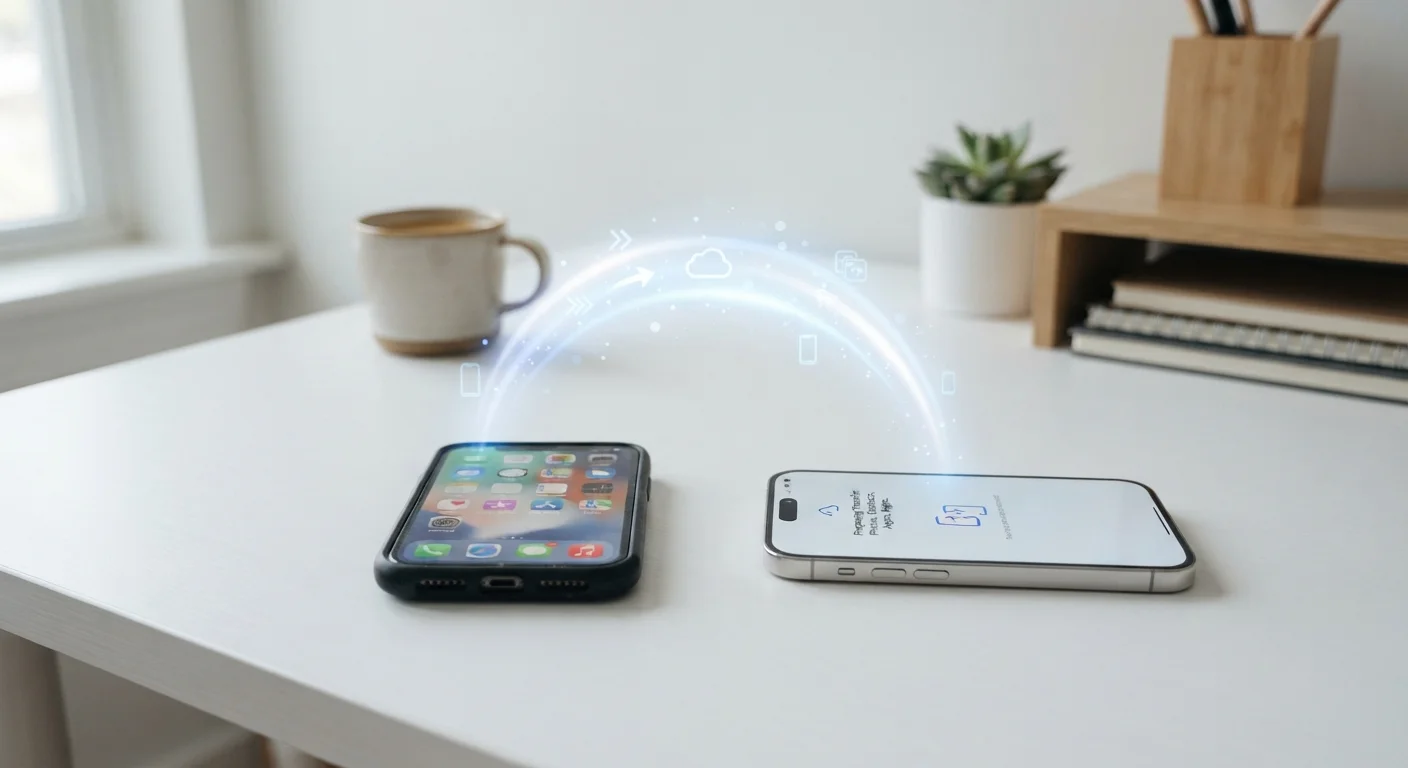
Apple's built-in transfer feature uses a direct wireless connection to move your data during the initial setup of a new iPhone.
Google One Backup / Android Backup
Backs up your Android phone's contacts, apps, call history, and settings to your Google account for easy restoration on a new device.
Move to iOS (app)
Google's official app that transfers data from an Android phone to an iPhone during the iPhone's initial setup process.
iCloud or Google Drive
Cloud storage used to back up photos, documents, and other files independently of the phone-to-phone transfer process.
USB cable and computer
Enables a wired backup through iTunes or Finder (iPhone) or Android File Transfer (Android) as an alternative to wireless transfer.
If you're still deciding whether now is the right time to upgrade, consider these questions first — the transfer process works best when you're confident in your decision.
Step-by-Step: Moving Your Data
The exact steps vary slightly depending on whether you're moving between two iPhones, two Android phones, or switching platforms entirely. The process below covers the core flow for each scenario, with platform-specific notes along the way.
Back up your old phone completely
Before anything else, create a full backup. On iPhone, go to Settings → [Your Name] → iCloud → iCloud Backup and tap Back Up Now. On Android, go to Settings → System → Backup and confirm Google Backup is on and up to date. Also manually back up any photos not yet in the cloud by uploading them to Google Photos or iCloud Photos.
Set up your new phone and choose your transfer method
Power on your new phone and follow the on-screen setup prompts. When asked how you'd like to transfer data, choose the appropriate method: Quick Start for iPhone-to-iPhone, Restore from Google Backup for Android-to-Android, or Move to iOS if switching from Android to iPhone. Keep both phones close together and on Wi-Fi throughout this step.
Transfer your SIM card or activate eSIM
Your phone number and cellular plan live on your SIM card or eSIM. For a physical SIM, use the included ejector tool to remove it from your old phone and insert it into the new one. For an eSIM, contact your carrier or use their app to transfer the eSIM profile digitally — this usually takes just a few minutes.
Reinstall apps and sign back in
Most apps are restored automatically, but they'll need you to sign in again. Work through your most-used apps first: email, banking, streaming, and social media. For banking apps especially, you may need to re-verify your identity through a code sent to your email or phone number. Take this step-by-step rather than rushing through all logins at once.
Verify everything transferred correctly
Before doing anything with your old phone, audit your new one. Check: recent photos and videos, contact list, text message history, downloaded music or podcasts, calendar events, and any notes or documents you rely on. Open a few key apps to confirm they're functioning and your data is intact.
Wipe your old phone before trade-in or storage
Once you're confident everything is on your new phone, perform a factory reset on your old device. On iPhone: Settings → General → Transfer or Reset iPhone → Erase All Content and Settings. On Android: Settings → System → Reset → Factory Data Reset. This removes your personal data and signs out of your accounts, protecting your privacy if the phone is traded in, sold, or recycled.
Going Cross-Platform? Expect More Manual Work
Switching between iPhone and Android (or vice versa) means fewer data types transfer automatically. Contacts and photos generally move well, but your app library won't carry over — you'll need to reinstall apps individually from the new platform's store and re-purchase any paid apps that don't have cross-platform licenses. Build in extra time if you're making a platform switch.
Once your new phone is set up, it's a good time to review your security settings. These everyday security habits take only minutes to put in place and protect everything you just transferred.
What Doesn't Transfer Automatically
Even the best automated transfer tools have blind spots. Knowing what to expect prevents unpleasant surprises after you've already handed in your old device.
- Two-factor authentication (2FA) apps: Apps like Google Authenticator or Authy store codes locally. Move these manually by exporting your accounts within the app before switching devices.
- App-specific logins: Many apps require you to sign back in, especially banking and streaming apps that tie accounts to a specific device ID.
- SMS-based 2FA: These codes go to your phone number, so they'll work on your new device once your SIM or eSIM is active — but confirm your number is transferred before locking yourself out.
- Carrier-specific voicemail: Visual voicemail may need to be reactivated through your carrier's app or settings menu.
- Local files not in cloud storage: Documents, voice memos, or videos saved only to internal storage won't transfer wirelessly — back these up manually to a computer or cloud drive first.
Don't Wipe Your Old Phone Too Soon
It can take 24–48 hours to realize something didn't transfer — a specific photo album, an app's saved data, or a document you rarely open. Keep your old phone functional and backed up for at least a few days before resetting it. Once you factory reset, locally stored data that wasn't backed up is gone permanently.
For a deeper look at what smartphone ownership involves beyond the initial setup, this guide covers the full cost picture, including trade-in timing and long-term value.