
Setting Up Your Smartphone for the First Time
When you power on a new smartphone, it walks you through a series of setup screens. Don't rush through them — the choices you make here shape how your phone behaves going forward.
The first major step is signing into or creating an account. On an Android phone, that means a Google account. On an iPhone, you'll need an Apple ID. Both are free and serve as the hub for your app store access, cloud storage (automatic backups of your photos and contacts), and device security features.
During setup you'll also be asked to connect to Wi-Fi, set a screen lock method (PIN, fingerprint, or face recognition), and choose whether to restore from a previous device or start fresh. If this is your very first smartphone, select the fresh-start option.
Google Account / Apple ID
A free account that connects your phone to the app store, cloud backups, and security features. Android uses a Google account; iPhone uses an Apple ID.
App permissions
Requests an app makes to access parts of your phone — like your camera, location, or contacts. You control which requests to approve or deny.
Mobile data
Internet access provided by your phone carrier's cellular network. It works without Wi-Fi but typically counts against a monthly data allowance.
Cloud backup
An automatic copy of your phone's data — photos, contacts, settings — stored on remote servers so it can be restored if your phone is lost or replaced.
Screen timeout
The amount of time your phone waits before turning off the display when not in use. A shorter timeout saves battery life.
Software update
An improvement to your phone's operating system, typically including security patches and bug fixes. Installing updates promptly helps keep your device safe.
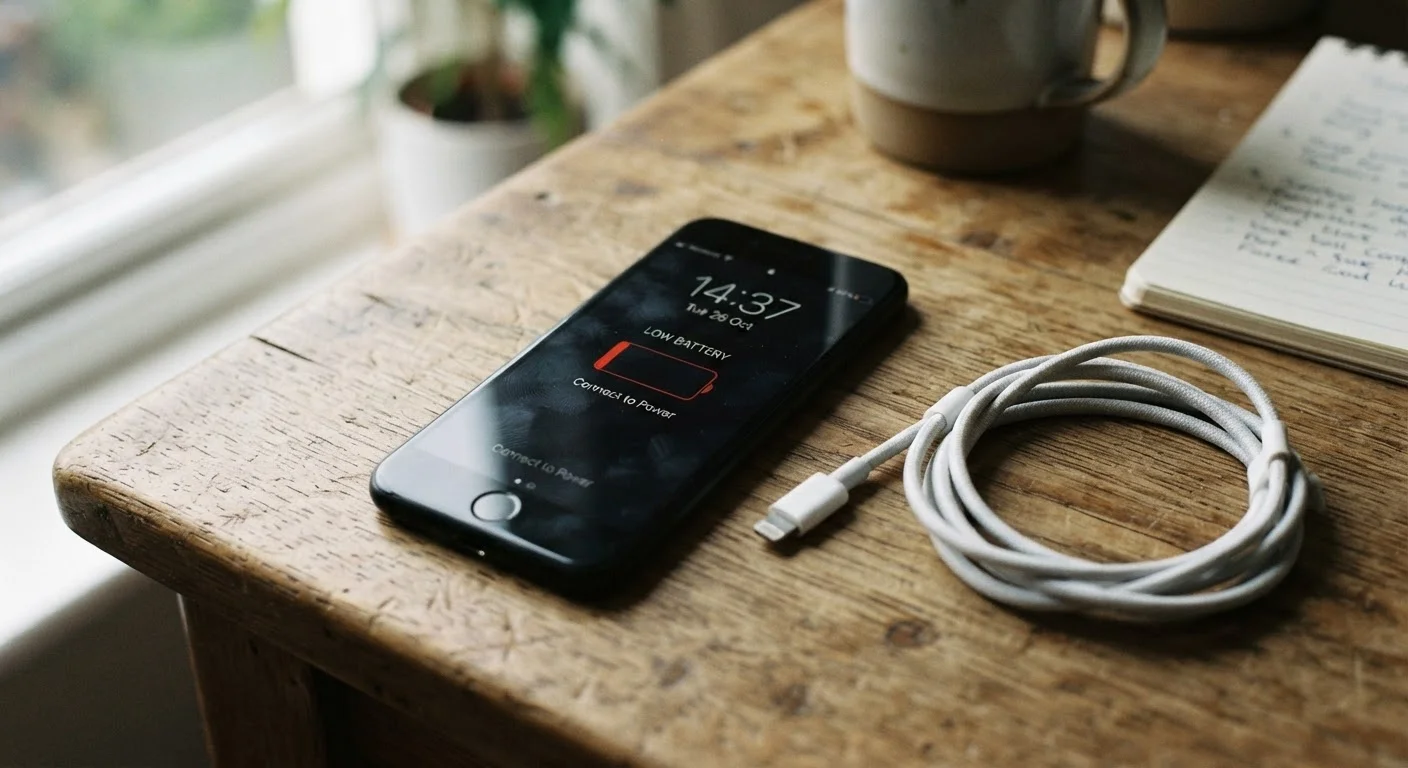
Once the initial setup finishes, take a moment to charge your phone fully before heavy use — this is especially true for new devices with lithium-ion batteries.
Essential Settings to Configure Right Away
The default settings on a new phone are designed to work for most people — but a handful of adjustments will make your experience noticeably better and safer.
- Screen brightness and timeout: Set the screen to auto-brightness and reduce the screen timeout to 30–60 seconds. This conserves battery without inconveniencing you.
- Notifications: Go to Settings > Notifications and review which apps can alert you. Allowing everything leads to constant interruptions. Be selective from the start.
- Storage awareness: Check Settings > Storage to see how much space you have available. Photos and videos consume the most space over time.
- Software updates: Enable automatic updates or check for them manually. Updates patch security vulnerabilities — skipping them is one of the most common ways devices become compromised.
If you plan to use a tablet for work tasks as well, our article on settings to check before relying on a tablet for work covers additional productivity-focused configurations worth knowing.
Start Clean: Curate Notifications Early
New phones arrive with many apps pre-installed, and each wants permission to send you alerts. Spend five minutes right after setup going through notification settings app by app. Approving too many creates noise that makes it easy to miss alerts that actually matter.
Understanding Apps: Installing, Managing, and Removing Them
Apps are programs you install to add functionality to your phone — everything from maps and messaging to banking and photography. They live in your phone's official store: Google Play on Android or the App Store on iPhone.
When you install an app, it may ask for permissions — access to your camera, microphone, location, or contacts. Grant only what makes sense for what the app does. A flashlight app has no reason to access your contacts; a navigation app reasonably needs your location.
To remove an app you no longer use, press and hold its icon until options appear, then select uninstall or remove. Unused apps still consume storage and can run background processes, so clearing them out is good practice.
Avoid Sideloading Apps From Unknown Sources
Installing apps from websites or links outside the official app store — known as sideloading — bypasses security checks that help protect your device. Even if a link looks legitimate, unofficial app sources are a common way malware ends up on phones. Stick to Google Play or the App Store for every install.
For a broader look at smartphone security habits that go beyond basic settings, see our guide on keeping your smartphone secure.
Staying Connected: Calls, Texts, and the Internet
Your smartphone connects to the world in two main ways: through Wi-Fi (a wireless network in your home, office, or public spaces) and through mobile data (your carrier's cellular network, which works nearly anywhere you have signal).
Wi-Fi is generally faster and doesn't count against your monthly data plan. Mobile data is available when you're away from a known network. Most phones automatically prefer Wi-Fi when it's available, but you can always check the icons at the top of your screen to see which connection is active.
Making calls and sending texts works through your carrier plan. Most standard plans include unlimited calls and texts in the U.S. Video calls and messaging apps (like FaceTime, WhatsApp, or Google Meet) use data or Wi-Fi instead of traditional call minutes. Our plain-language guide to how your phone connects goes deeper on all of this, including hotspots.
Keeping Your Device and Data Secure
A smartphone holds a significant amount of personal information — messages, photos, banking apps, email. Basic security habits protect all of it without requiring any technical expertise.
Start with a strong screen lock. A 6-digit PIN is considerably more secure than a 4-digit one. Biometric options (fingerprint or face unlock) add convenience without sacrificing protection. Avoid patterns, which are the easiest lock type to guess or observe.
Beyond the lock screen, review which apps have access to sensitive data. Periodically go to Settings > Privacy and scan the list of apps with access to your location, camera, and microphone. Revoke anything that doesn't need it.
Back up your data regularly. Both Android (Google One) and iPhone (iCloud) offer automatic cloud backups — enable this so your contacts, photos, and app data aren't lost if your phone is damaged or stolen.
If you want to go further, our detailed guide on smartphone security habits that actually matter covers everything from two-factor authentication to what to do if your device is lost. And when you're thinking about long-term costs, the full picture on smartphone ownership is a useful next read.