
Why This Decision Feels Overwhelming
Walk into any electronics retailer — or browse any major tech site — and you're instantly confronted with hundreds of models, a wall of acronyms, and price points ranging from a few hundred to several thousand dollars. For a first-time buyer, it's genuinely disorienting.
The good news: most of that complexity is aimed at specialized users. The average person browsing the web, managing documents, video-calling family, or taking online classes needs a much narrower slice of the market. The goal of this guide is to shrink the landscape down to what actually matters for your situation — before you spend a dollar.
Marketing Language Can Mislead
Terms like 'powerful,' 'ultra-fast,' and 'pro-grade' are marketing descriptions, not technical standards. When evaluating a computer, focus on the specific numbers: processor generation, RAM in gigabytes, and storage type and capacity. Those figures tell you far more than promotional language.
Form Factors: Desktop, Laptop, or Something Else?
The first and most consequential choice is physical form. Each category involves real trade-offs, not just aesthetic preferences.
- Desktop computers
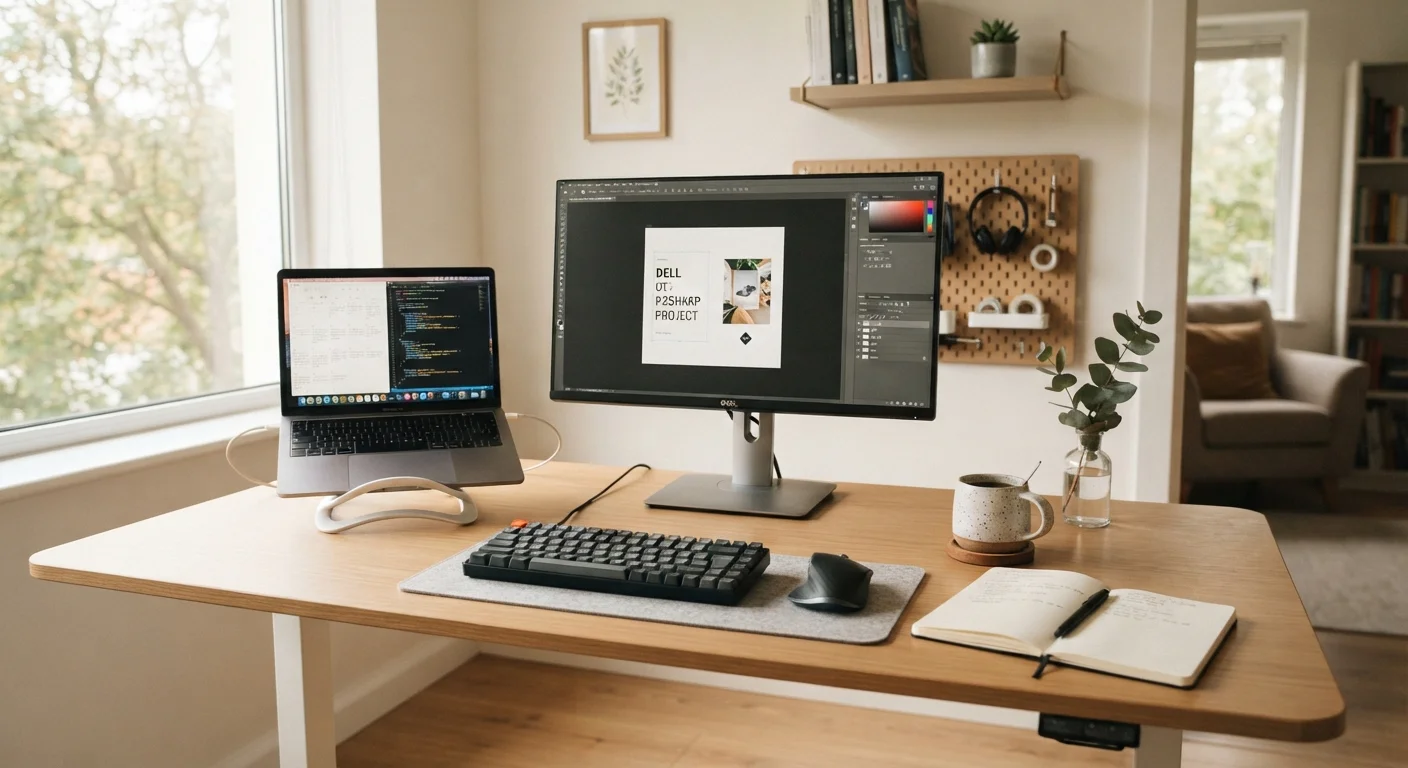
- Designed to stay in one place, desktops typically deliver more performance for the price and are easier to upgrade over time. If portability is not a concern, they are often the most cost-efficient option.
- Laptops
- Self-contained and battery-powered, laptops are the default choice for students, remote workers, and anyone who moves between locations. The trade-off is that most components are not user-upgradeable.
- Tablet hybrids (2-in-1s)
- Devices that function as both a tablet and a laptop with an attachable keyboard. They offer flexibility but can involve compromises on both the tablet and laptop side of the equation. Worth considering only if portability and touch interaction are both priorities.
If you're primarily interested in a portable, screen-focused device for media and light tasks, our smartphones and tablets hub covers that category in depth.
Think About Where You'll Actually Use It
Many first-time buyers default to a laptop without considering that they'll rarely leave their home desk. If portability is genuinely not a priority, a desktop typically offers more value for the same budget. Be honest with yourself about your real habits before committing to a form factor.
The Specs That Actually Matter
Specs — technical specifications — describe the hardware inside a computer. You don't need to master all of them. These three shape the everyday experience most directly:
CPU (Processor)
The central processing unit is the computer's main chip, responsible for running programs and performing calculations. A faster CPU handles complex tasks more quickly.
RAM
Random access memory is temporary, fast storage that holds the data your computer is actively using. More RAM allows more programs or browser tabs to run simultaneously without slowdowns.
SSD
A solid-state drive stores your files and operating system with no moving parts, making it significantly faster and more durable than older hard disk drives.
Operating System
The foundational software (such as Windows, macOS, or ChromeOS) that manages hardware and provides the environment where all other programs run.
Form Factor
The physical shape and configuration of a computer — such as a desktop tower, laptop, or tablet hybrid — which determines portability, upgradeability, and typical use scenarios.
Processor (CPU)
The processor handles computations. For typical use — web browsing, email, document editing, streaming video — a mid-range modern processor is more than sufficient. High-end processors matter most for video editing, 3D rendering, and gaming.
RAM
RAM determines how many tasks a computer can juggle simultaneously without slowing down. For general use, 8 GB is a workable floor; 16 GB provides more comfortable headroom if you keep many browser tabs or applications open at once.
Storage
Two technologies dominate: traditional hard disk drives (HDDs) and solid-state drives (SSDs). SSDs have no moving parts and load programs and files significantly faster. When comparing otherwise similar machines, the one with an SSD will feel snappier in daily use. Storage capacity determines how much you can save locally — documents, photos, downloaded software.
Also worth noting: a machine that feels slow isn't always underpowered. Software and settings issues are often the real culprit.
Operating Systems at a Glance
An OS is the software environment that runs on your computer and determines what programs you can use, how the interface looks, and how the system is maintained.
- Windows — The most widely used desktop OS worldwide. Compatible with the broadest range of software and hardware. A solid default for most first-time buyers.
- macOS — Runs exclusively on computers made by one manufacturer. Known for a consistent interface and tight integration with other Apple devices. Software library is large but narrower than Windows.
- ChromeOS — Lightweight and browser-centric. Well-suited to users whose needs are almost entirely web-based: email, streaming, online documents. Less capable offline.
- Linux — Open-source and highly customizable, but carries a steeper learning curve and is generally not recommended as a starting point for first-time users.
There is no universally correct choice. The right OS is the one that supports the software you need and fits the environment you're already familiar with.
Questions to Ask Before You Commit
Before narrowing your options, work through these practical questions. Your answers will filter out a significant portion of the market on their own:
- Where will you use it? A fixed location favors a desktop; regular travel favors a laptop.
- What will you primarily do? Web browsing and documents require far less than video editing or gaming.
- Which software do you need? Some programs run only on specific operating systems. Confirm compatibility before committing to a platform.
- How long do you expect it to last? Longevity favors machines with components that can be upgraded — typically desktops — or models with a strong manufacturer support track record.
- What's your realistic budget? Factor in accessories: a monitor, keyboard, and mouse for a desktop; a carrying case for a laptop. These add to the total cost.
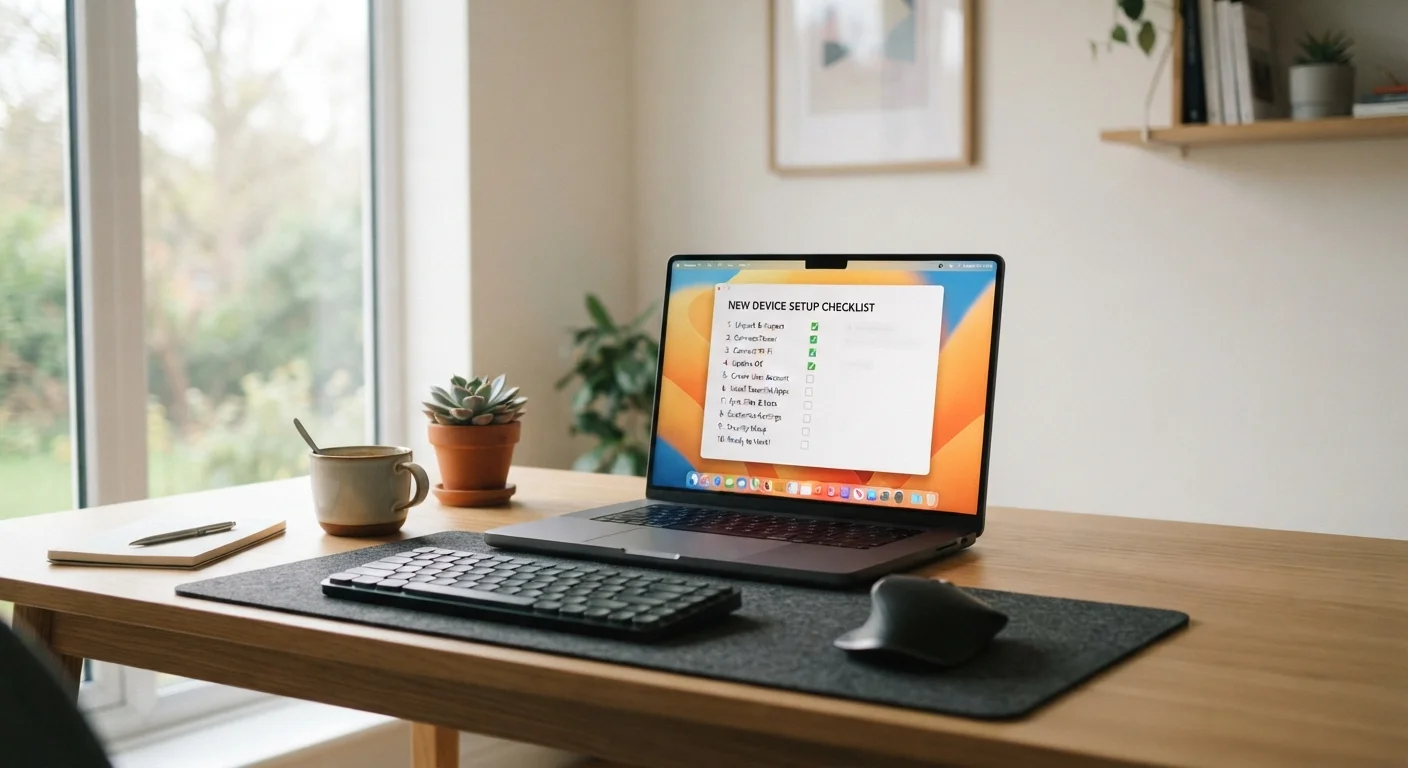
Once you've made a decision and have a machine in hand, the next step is getting it configured correctly. Our new computer setup guide walks through updates, security settings, and essential software — so you start on solid footing.
Setting Up a New Computer the Right Way
Once you have your computer, this step-by-step walkthrough covers updates, accounts, security settings, and essential software to get your machine properly configured from day one.
Smartphones & Tablets Hub
If a full computer feels like more than you need, this hub offers plain-language guides to choosing and using smartphones and tablets for everyday tasks.