
Why This Audit Matters Before You Go All-In
Tablets have grown into genuinely capable work tools, but capable isn't the same as ready. A tablet that handles streaming and casual browsing brilliantly may still stumble under the demands of video calls, document editing, or multi-tab research sessions. Before you depend on yours for real work tasks, a short audit can expose gaps you'd rather find at home than discover during an important meeting.
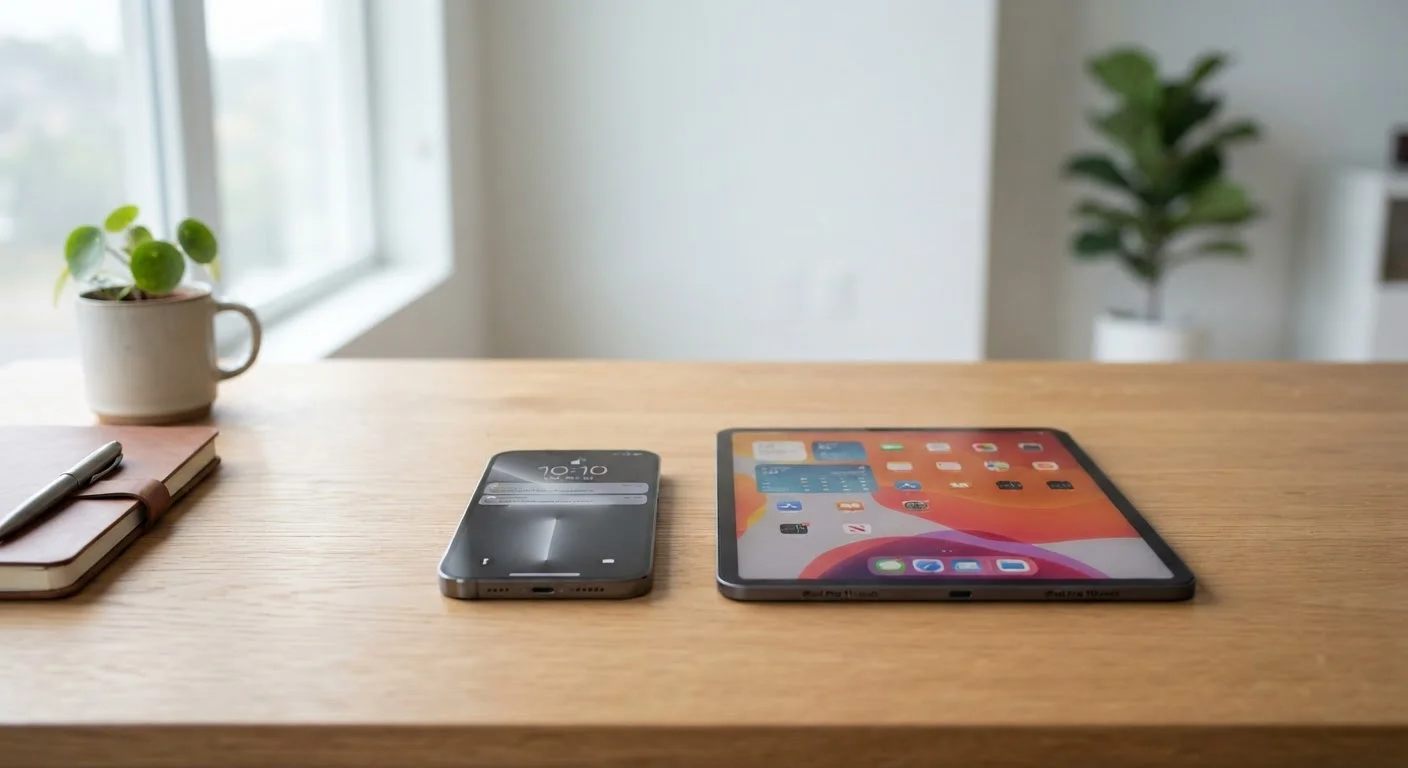
If you're still weighing whether a tablet is the right fit to begin with, this breakdown of smartphone vs. tablet trade-offs is worth reading first. And if you want a broader comparison of form factors, comparing desktops and laptops can give you useful context. This checklist assumes you already have a tablet and want to make sure it's genuinely work-ready.
Battery and Power
Connectivity
Apps and Software
Accessories and Input
Security and Accounts
Tools and Accessories to Have On Hand
Some checklist items require physical accessories or software you may not yet have. Review what's available for your specific tablet model before purchasing — not all accessories are cross-compatible, and some features (like stylus support or keyboard shortcuts) are model-dependent.
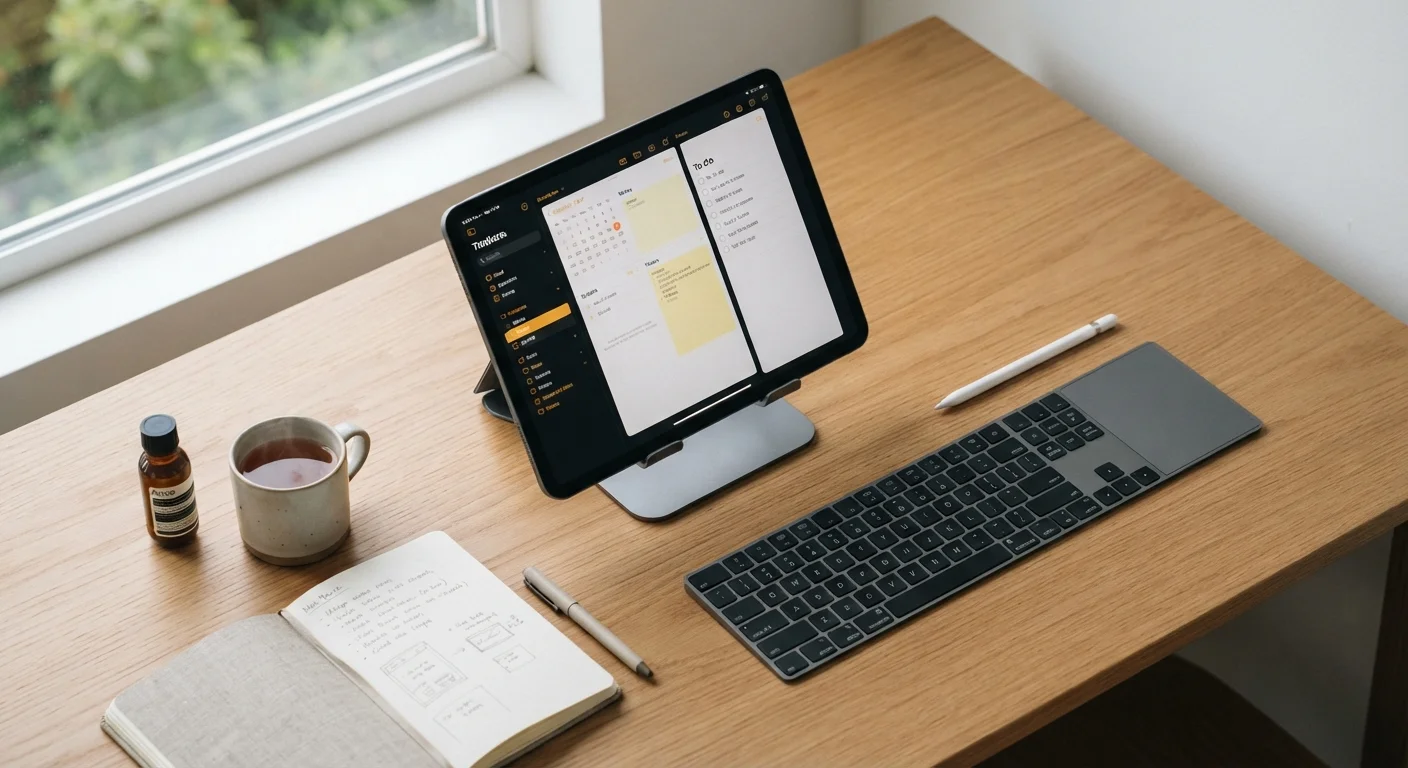
Physical keyboard (Bluetooth or magnetic)
Enables comfortable, full-speed typing for emails, documents, and extended writing tasks.
USB-C hub or adapter
Expands limited ports to connect external drives, monitors, wired ethernet, or other peripherals.
Stylus (model-compatible)
Supports handwritten notes, sketches, and annotation within compatible apps.
Portable battery pack
Provides backup power during long work sessions or when working away from a wall outlet.
Wired or Bluetooth headset with microphone
Delivers clearer audio on video calls and reduces background noise compared to built-in speakers.
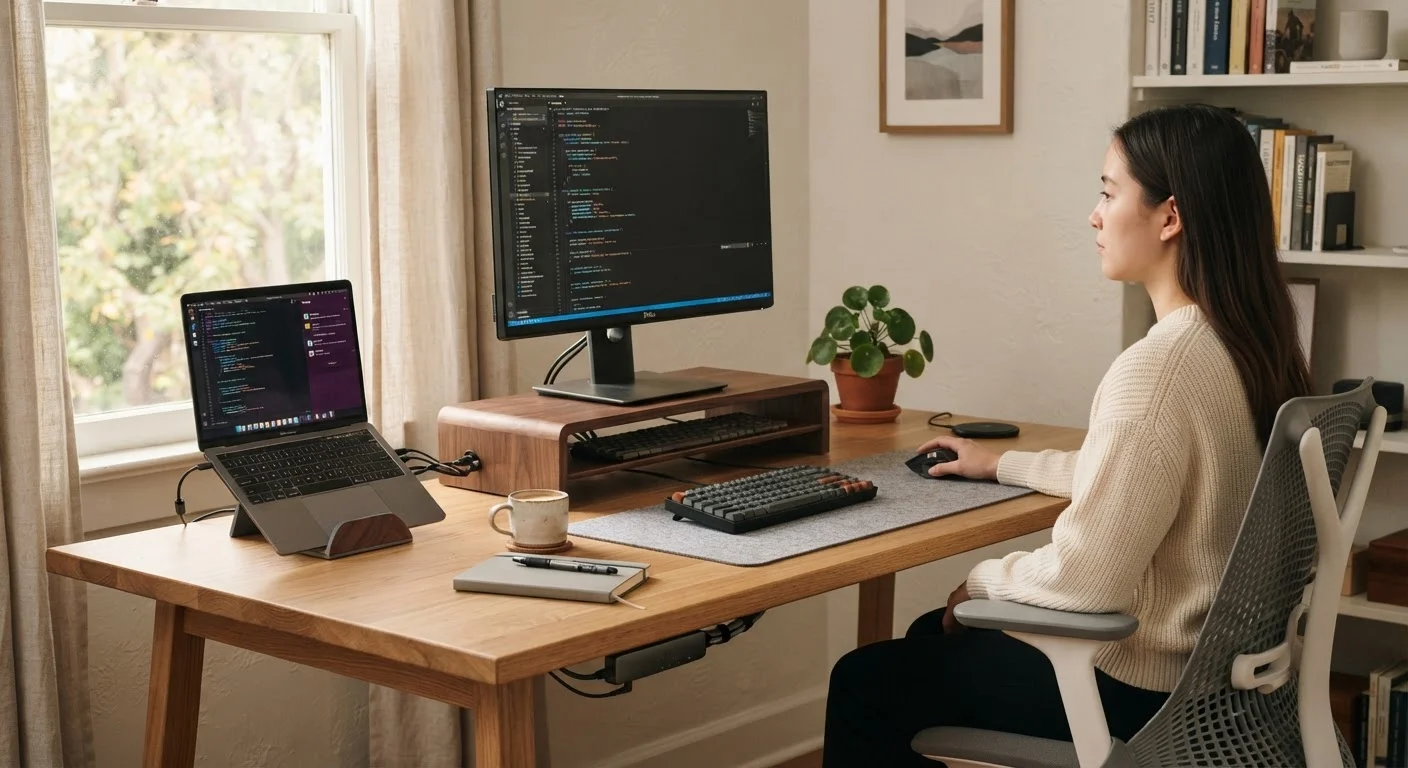
For a deeper look at which add-ons make the most difference in a work-from-home environment, this guide on work-from-home accessories covers the considerations worth thinking through before you spend anything.
Common Pitfalls That Catch People Off Guard
Even a well-prepared tablet has real-world constraints worth naming clearly. Multitasking on a tablet typically means running two or three apps simultaneously at best — not the 10-window desktop workflow some people expect. File management can also feel limited depending on the operating system; moving files between apps or accessing cloud storage isn't always as seamless as it is on a computer.
Audio and video quality on built-in cameras and microphones varies widely. If your work involves regular video calls, test both before a real meeting, not during one. Similarly, check whether your work applications have a tablet-specific version or only a mobile app — some mobile apps strip out features that their desktop counterparts include.
Don't Assume App Parity with Desktop Versions
Many productivity apps — including document editors and project management tools — offer tablet versions that look similar to their desktop counterparts but are missing key features like advanced formatting, macros, or full keyboard-shortcut support. Always open the specific tasks you need to perform and test them end-to-end before your work depends on them. Contact your IT department or software provider if critical features appear unavailable on the tablet version.
If you're newer to device setup in general, this beginner's guide for first-time smartphone owners covers foundational settings and security steps that apply to tablets as well.