
Why Accessories Actually Matter for Remote Work
Working from a laptop perched on a kitchen table is functional — but it's rarely comfortable or sustainable over a full workday. The gap between a workable setup and a genuinely productive one often comes down to a handful of thoughtful additions rather than a faster processor or more RAM.
That said, the accessories market is cluttered with gadgets that promise more than they deliver. The items worth understanding are the ones that address real, recurring friction: physical discomfort, limited connectivity, poor audio, or eye fatigue. If you're also weighing whether your current machine is the right form factor to begin with, our article on desktop versus laptop trade-offs is a useful starting point.
Below, we break down the accessory categories that consistently make a practical difference — and explain what to understand about each before buying anything.
An External Keyboard and Mouse
Laptop keyboards are engineered for portability, not for extended typing sessions. The keys tend to be shallower, the spacing tighter, and the wrist angle more awkward than on a full-size external keyboard. Over hours of daily use, this matters.
External keyboards come in two broad categories: mechanical (with individual physical switches per key, offering tactile feedback and durability) and membrane (quieter, softer, and typically more affordable). Neither is universally better — the right choice depends on your preference for feel and your tolerance for typing noise in shared spaces.
An external mouse, meanwhile, gives you more natural wrist positioning than a trackpad and reduces the repetitive micro-movements that contribute to wrist strain. Ergonomic mouse designs — including vertical mice that keep the forearm in a more neutral rotation — are worth considering if you spend significant time in pointer-heavy applications.
External keyboards reduce wrist strain that accumulates over hours of daily laptop typing.
A Monitor or Monitor Arm
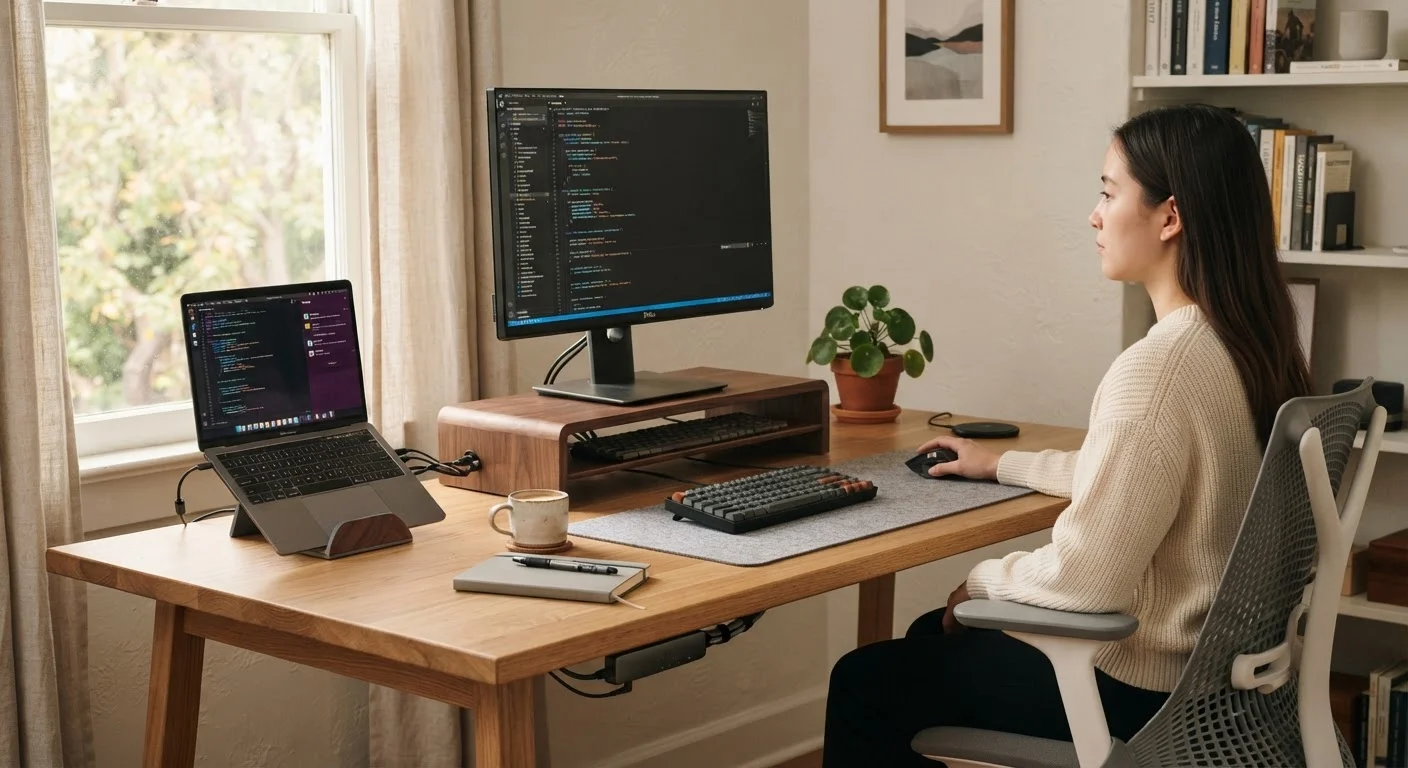
Screen positioning is one of the most impactful ergonomic variables in a desk setup, and it's one of the most commonly ignored. The top of your monitor should sit roughly at eye level, and the screen should be about an arm's length away. A laptop screen placed flat on a desk violates both of these principles by design.
An external monitor raises your eye line and gives you more screen real estate for multitasking. If you already have a monitor but it sits directly on the desk, a monitor arm — a adjustable articulating mount — lets you dial in the exact height, tilt, and distance without a new display. Monitor arms also free up desk surface, which is a meaningful benefit in smaller workspaces.
Resolution matters, but for most knowledge work, a standard 1080p or 1440p (also called QHD) display is sufficient. Higher resolutions become more relevant for creative or design work involving fine detail.
Screen height and distance affect neck and eye fatigue far more than screen size alone.
A USB Hub or Docking Station
Modern thin laptops — particularly those built around USB-C — often ship with as few as two ports. That creates an immediate logistical problem when you need to connect a monitor, keyboard, mouse, webcam, and storage device simultaneously.
A USB hub expands a single port into several, typically adding USB-A ports, SD card slots, and additional USB-C connections. A docking station does the same but at larger scale, often adding Ethernet, HDMI or DisplayPort outputs, and audio jacks — and sometimes charging the laptop through a single cable connection.
When evaluating either option, pay attention to the data transfer standard it supports. USB 3.0 (also labeled USB 3.2 Gen 1) transfers data at up to 5 Gbps; USB 3.2 Gen 2 reaches 10 Gbps. For most peripherals, the difference is imperceptible — but if you're moving large files to external drives regularly, the faster standard matters.
A USB hub solves port scarcity on thin laptops without the cost or bulk of a full docking station.
A Dedicated Webcam and Microphone
Built-in laptop cameras and microphones are designed to meet a minimum threshold, not to perform well. In a work-from-home environment where video calls are a daily constant, the quality of how you appear and sound affects how your communication lands — including perceived professionalism and clarity.
An external webcam typically offers better low-light performance, a wider or more adjustable field of view, and sharper image quality than an integrated camera. For audio, a USB condenser microphone captures voice with noticeably more clarity and less background noise than laptop mics, which pick up fan noise, keyboard sounds, and room echo indiscriminately.
If a standalone microphone isn't practical, a headset with a dedicated boom microphone — one that positions the mic close to your mouth — is a significant improvement over relying on the laptop's built-in array.
External audio gear has a bigger impact on perceived call quality than most video upgrades.
Desk Lighting
Lighting affects two distinct things in a home office: eye comfort and how you look on video calls. These problems can be addressed together or separately.
For eye comfort, the goal is to reduce contrast between your screen and the surrounding environment. A room that is entirely dark except for a bright monitor creates eye fatigue faster than one with balanced ambient light. A simple desk lamp with adjustable color temperature — measured in Kelvins — lets you shift between warmer light (lower Kelvin, around 2700K) for relaxed work and cooler, more alert-feeling light (5000K–6500K) for focused tasks.
For video calls, the placement of light matters as much as its intensity. A light source positioned in front of you — rather than behind or to the side — illuminates your face evenly and avoids the silhouette effect that plagues many remote workers who sit with a window behind them. A small ring light or a panel light mounted above the monitor addresses this directly.
Positioning light in front of you, not behind, eliminates the silhouette problem on video calls.
Cable Management Solutions
Cable clutter is easy to dismiss as purely aesthetic, but it has practical consequences. Tangled cables collect dust, make it harder to move or reconfigure equipment, and create a subtle cognitive drag on focus — a disorganized physical environment competes for attention in ways that are easy to underestimate.
Cable management doesn't require expensive solutions. Cable clips that attach to desk edges, velcro ties that bundle cables together, and cable raceways (plastic channels that run along walls or desk legs) collectively eliminate most cable chaos. A power strip mounted under the desk keeps adapters off the floor and out of sight.
If you're building out a more integrated home tech setup beyond the desk itself, the principles of planning and organization carry over — our overview of building a first smart home setup covers similar grounding principles for home technology more broadly.
Organized cables reduce both physical dust accumulation and the low-level cognitive clutter of a messy desk.
Building a Setup That Lasts
The accessories above don't have to be purchased all at once. A practical approach is to identify your single biggest pain point — neck strain, cramped ports, poor call audio — and address that first. Once that's resolved, the next friction point usually becomes obvious.
Start With Your Biggest Pain Point
Rather than purchasing several accessories at once, identify the single friction point that costs you the most comfort or focus each day. Resolving it first often clarifies whether additional accessories are actually needed. Incremental upgrades also make it easier to assess what's genuinely helping versus what simply felt compelling in a product listing.
It's also worth remembering that accessories work best when the underlying machine is running well. Sluggish software, bloated storage, or outdated drivers can undermine even the most ergonomic desk setup. Our guide on keeping your computer running smoothly covers the maintenance habits that matter most. And if you're exploring whether a tablet could serve some of your workload, see what to check before relying on a tablet for work.
A work-from-home setup doesn't need to be expensive to be effective. It needs to reduce the friction that accumulates across an eight-hour day — and the right accessories, chosen for your specific situation, do exactly that.