
Why Routine Maintenance Makes a Real Difference
Computers don't degrade at a fixed, inevitable rate. A machine that feels sluggish after two years and one that runs well after six often reflect the same underlying hardware — the difference is how they've been maintained. Most of what determines day-to-day performance over time comes down to software hygiene, storage management, and physical care, not the specs on the original box.
If you're weighing whether to replace your current machine entirely, our guide on Desktop or Laptop: Weighing the Trade-Offs can help frame that decision — but in many cases, maintenance habits matter more than form factor.
Slowdowns Aren't Always a Hardware Problem
Before assuming your machine is too old to keep, it's worth investigating software and storage issues first. Our companion piece Why a Slow Computer Isn't Always a Hardware Problem walks through the most common culprits behind sluggish performance on otherwise capable machines.
The Practices That Actually Extend a Computer's Useful Life
These aren't complex procedures requiring technical knowledge. They're repeatable habits that address the most common sources of performance decline and hardware stress. Each one is actionable by any user, regardless of experience level.
Install operating system and software updates promptly.
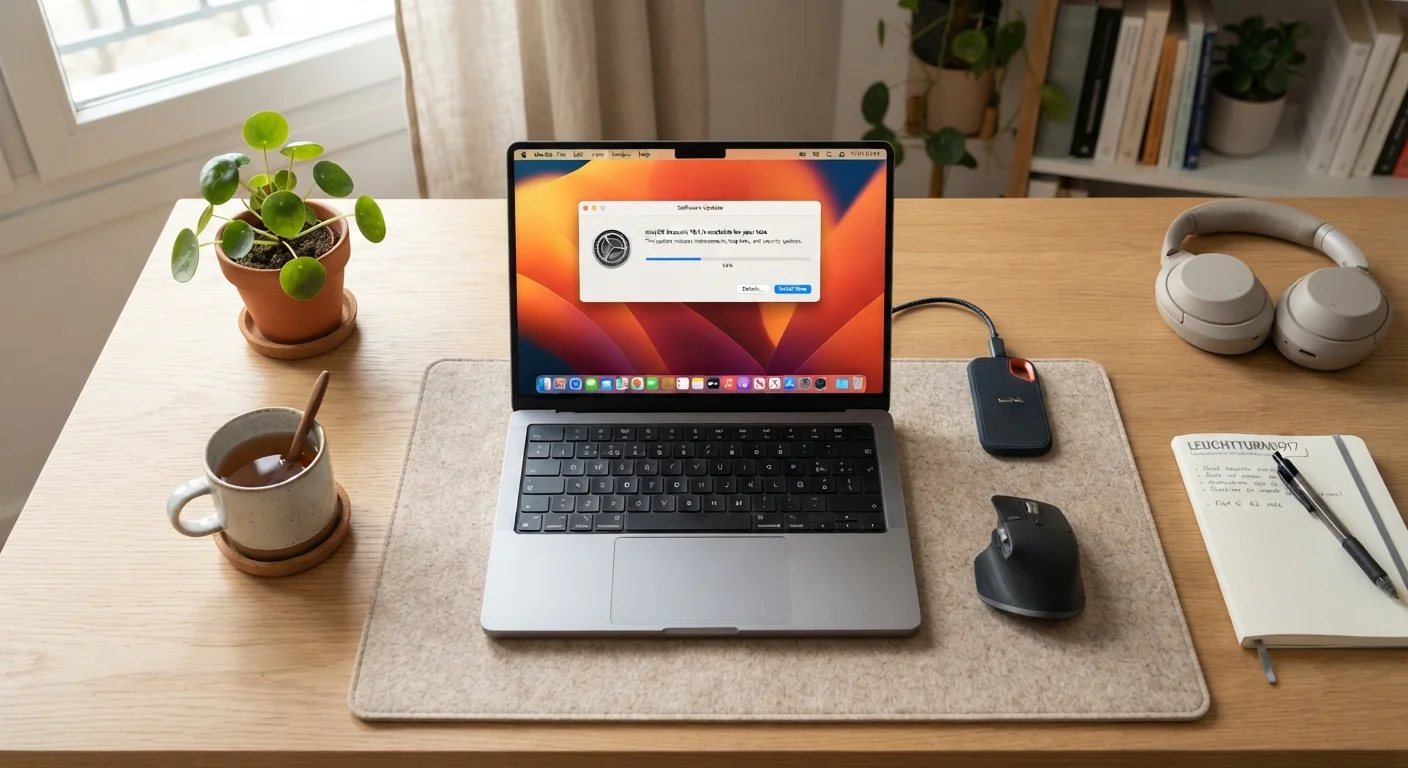
Updates patch security vulnerabilities, fix bugs, and often include performance improvements. Delaying them leaves your machine exposed to known threats and can cause compatibility problems over time.
Keep your primary drive at least 15–20% free at all times.
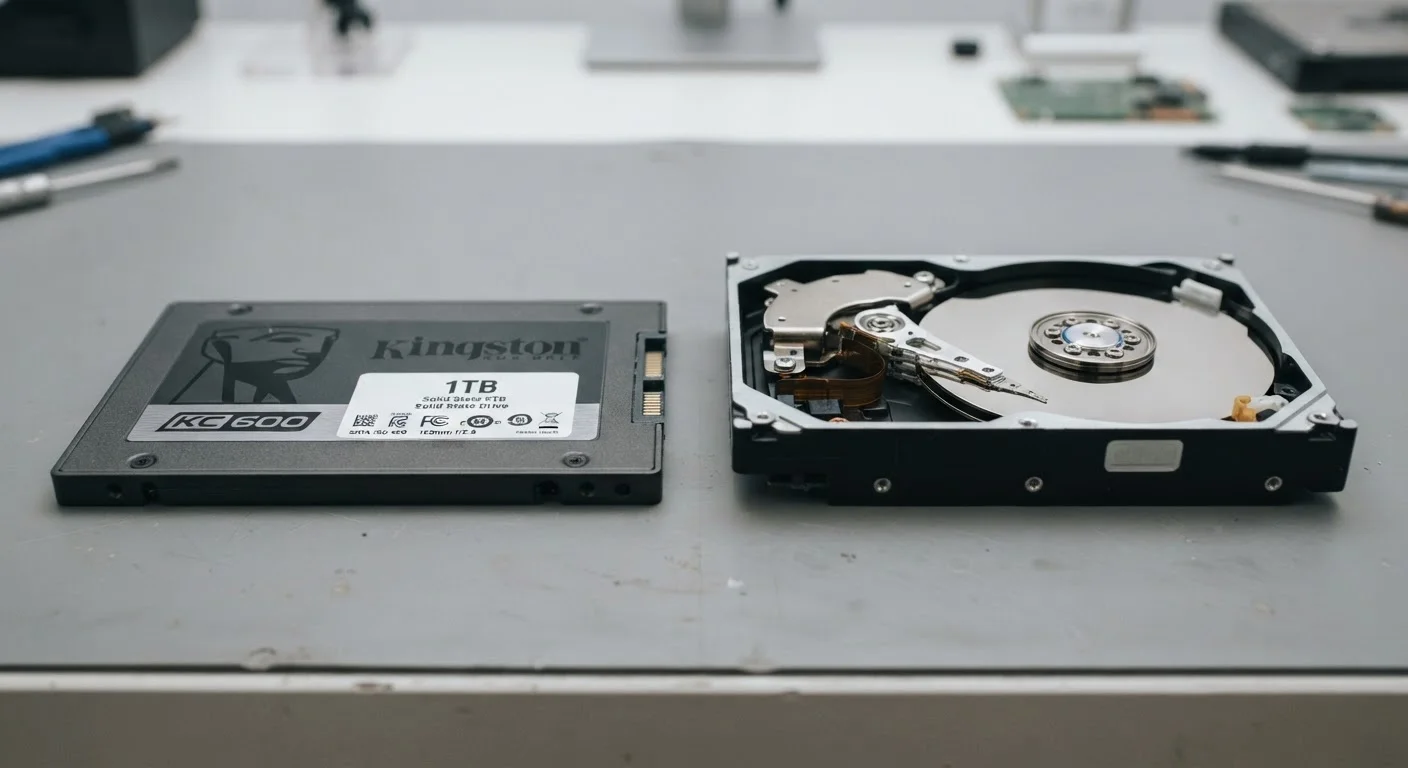
Both Windows and macOS use free disk space for virtual memory, temporary files, and background processes. When a drive fills up, the system struggles to manage these tasks, causing noticeable slowdowns. Our article on SSD vs. HDD differences explains how drive type affects this further.
Restart your computer regularly rather than relying on sleep mode indefinitely.
A full restart clears cached memory, applies pending updates, and resets background processes that can accumulate and bog down performance over days or weeks of continuous use.
Ensure adequate airflow and keep vents clear of dust and obstructions.
Heat is one of the primary causes of premature component wear. Blocked vents force the processor and other components to operate at higher temperatures, which triggers thermal throttling (automatic slowdowns to prevent damage) and shortens hardware lifespan.
Maintain a consistent, reliable backup routine.
No maintenance habit compensates for data loss. Drive failures, accidental deletions, and malware can erase years of files without warning. A backup ensures that a hardware problem doesn't become a catastrophic loss.
Understanding RAM and Storage — Two Commonly Confused Resources
One reason storage management catches people off guard is that RAM (random access memory) and storage are easy to conflate. RAM is the short-term workspace your computer uses while programs are running; storage is where files and applications live permanently. Running low on storage affects the system's ability to use virtual memory and write temporary files — which is why a full drive slows things down even when RAM is plentiful. Our piece on common misconceptions about computer memory clarifies how these two resources interact.
“The biggest threat to the longevity of most consumer computers isn't hardware failure — it's neglect of the software environment. Updates, storage hygiene, and basic physical care account for the vast majority of preventable performance decline.”
— Consumer Technology Association, Industry trade organization focused on consumer electronics standards and education
Start With These Actions Today
You don't need to overhaul anything to get started. These quick steps address the highest-impact areas immediately — and most take under five minutes.
For a more structured approach to configuring a machine from the ground up, see Setting Up a New Computer the Right Way, which covers updates, accounts, and security settings in sequence. And when the time eventually does come to move on from a device, Before You Recycle or Donate an Old Computer walks through how to do it safely and responsibly.