
Why Ports Matter More Than You Might Think
Ports are the physical gateways between your computer and everything else — your monitor, external drive, phone, keyboard, and speakers all depend on them. Choosing a laptop or desktop without checking the ports first can leave you reaching for adapters the moment you unbox it. This reference guide identifies the most common computer ports, explains what each one does, and notes where you're likely to encounter them. For a broader look at how specs translate to real-world performance, see our plain-language PC specs guide.
| USB-A Speed (USB 2.0) | Up to 480 Mbps (USB Implementers Forum specification) |
| USB 3.2 Gen 2 Speed | Up to 10 Gbps (USB Implementers Forum specification) |
| Thunderbolt 4 Speed | Up to 40 Gbps (Intel Thunderbolt 4 specification) |
| HDMI 2.1 Max Resolution | Up to 10K (HDMI Forum specification) |
| USB-C Connector Shape | Oval, reversible |
| Thunderbolt Identifier | Lightning bolt icon near port |
USB Ports: The Universal Workhorse
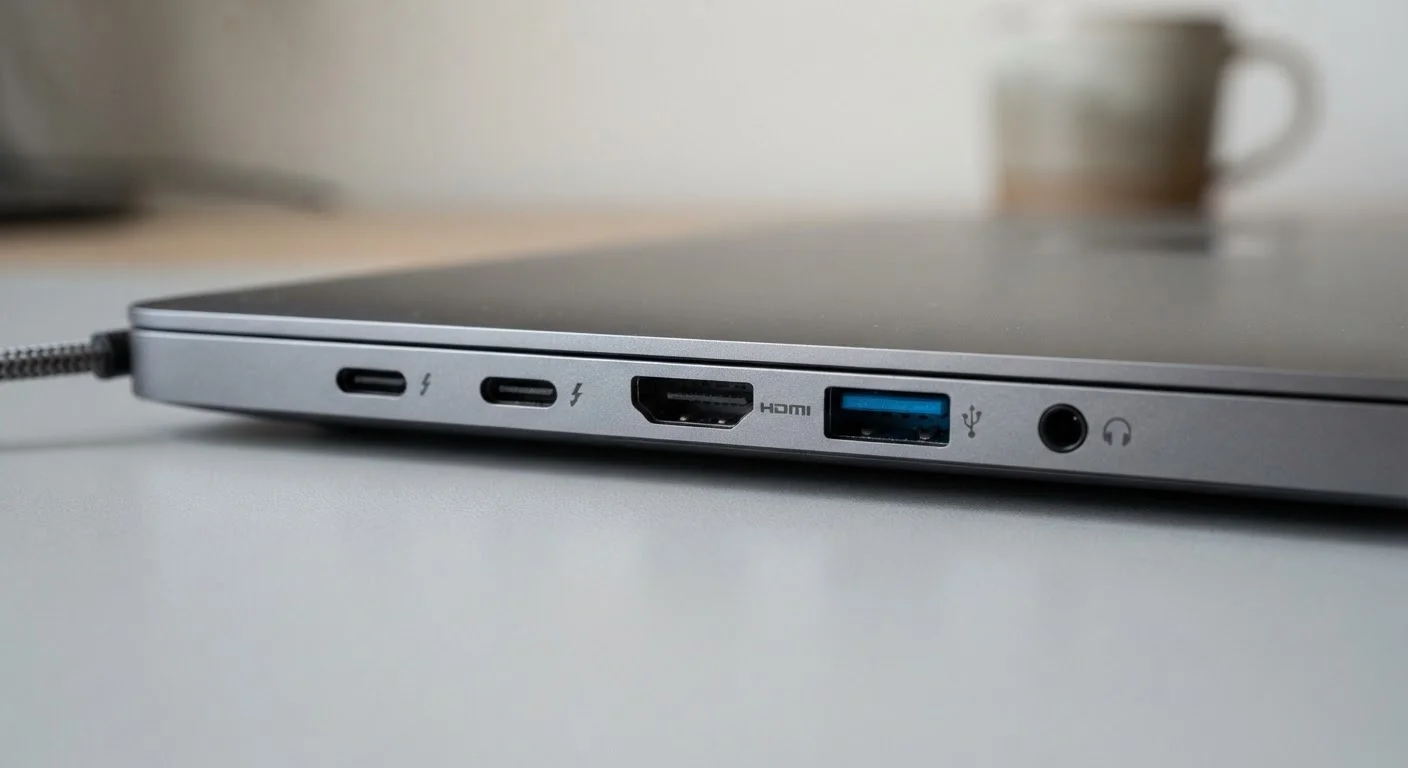
USB-A is the rectangular port nearly everyone recognizes. It's been the standard for keyboards, mice, flash drives, and chargers for decades. Data transfer speeds vary by generation: USB 2.0 tops out around 480 Mbps, while USB 3.0 and newer versions (often marked by a blue tab inside) can reach 5 Gbps or more.
USB-C is the smaller, oval-shaped connector increasingly found on laptops, tablets, and smartphones. Its key advantage is versatility — depending on the implementation, a single USB-C port can transfer data, deliver power (charging), and output video simultaneously. Not all USB-C ports support all three functions, so checking your device's spec sheet matters.
Micro-USB and Mini-USB are older, smaller formats still found on legacy accessories, some cameras, and older Android devices. They are largely being replaced by USB-C.
Bandwidth
The maximum amount of data a port can transfer per second, usually measured in megabits per second (Mbps) or gigabits per second (Gbps). Higher bandwidth means faster file transfers and better support for high-resolution video.
Thunderbolt
A high-speed interface developed by Intel that uses the USB-C physical connector. Thunderbolt 3 and 4 support up to 40 Gbps data transfer and can also carry video and power signals over a single cable.
DisplayPort
A digital video and audio interface primarily used to connect computers to monitors. It supports high resolutions and very high refresh rates, making it popular for gaming and professional displays.
USB-C
A small, reversible connector standard used for data, power delivery, and video output. A single USB-C port may support all three functions or only some, depending on how the device implements it.
HDMI
High-Definition Multimedia Interface — a widely used port for transmitting combined video and audio from a computer to a TV or monitor over a single cable.
Daisy-chaining
Connecting multiple devices in a series through a single port, rather than needing a separate port for each. Thunderbolt ports support daisy-chaining monitors and storage devices.
Video Output Ports: Connecting to Displays
HDMI (High-Definition Multimedia Interface) is the most common way to connect a computer to a TV or external monitor. Standard HDMI handles video and audio together over one cable. Newer HDMI versions (2.0, 2.1) support higher resolutions and refresh rates — a detail worth checking if you're connecting to a high-performance monitor. For more on display specs like resolution and refresh rate, our monitor spec breakdown covers those terms in depth.
DisplayPort is common on desktop monitors and is preferred by many for PC gaming and professional use because it can support very high refresh rates. A Mini DisplayPort variant appears on some older laptops and Mac hardware.
VGA (Video Graphics Array) is an older analog connector — the large, trapezoidal port with 15 pins. It's still present on some projectors and older monitors but has largely been phased out of modern laptops and desktops in favor of digital options.
Thunderbolt, Audio, and Specialty Ports
Thunderbolt ports use the USB-C physical shape but carry Intel's higher-bandwidth protocol. Thunderbolt 3 and 4 ports can transfer data at up to 40 Gbps — fast enough for external GPUs, high-speed storage arrays, and daisy-chaining multiple monitors. A small lightning bolt icon near the port identifies Thunderbolt on most devices.
3.5 mm audio jack (headphone jack) is a small round port for headphones, speakers, and microphones. Some thinner laptops and many newer smartphones have removed it in favor of wireless audio or USB-C adapters.
SD card slot accepts the memory cards used in digital cameras, making file transfers straightforward without a separate card reader. Common on mid-range to professional laptops; often absent on ultra-thin models.
Ethernet (RJ-45) is the wide, rectangular port for wired internet connections. It delivers more stable and often faster connectivity than Wi-Fi — useful to know when your wireless signal is inconsistent. For context on how wired and wireless connections compare, see our Wi-Fi and connectivity guide.
40 Gbps
Thunderbolt 4 maximum data transfer rate
Per the Intel Thunderbolt 4 specification, enabling fast external storage and multi-display setups over one cable.
4
Functions one USB-C port can perform
A fully featured USB-C port can simultaneously handle data transfer, video output, power delivery, and audio, depending on device implementation.
10 Gbps
USB 3.2 Gen 2 transfer ceiling
According to the USB Implementers Forum, this is roughly 20 times faster than USB 2.0's 480 Mbps ceiling.