
Resolution: How Many Pixels Are on Your Screen
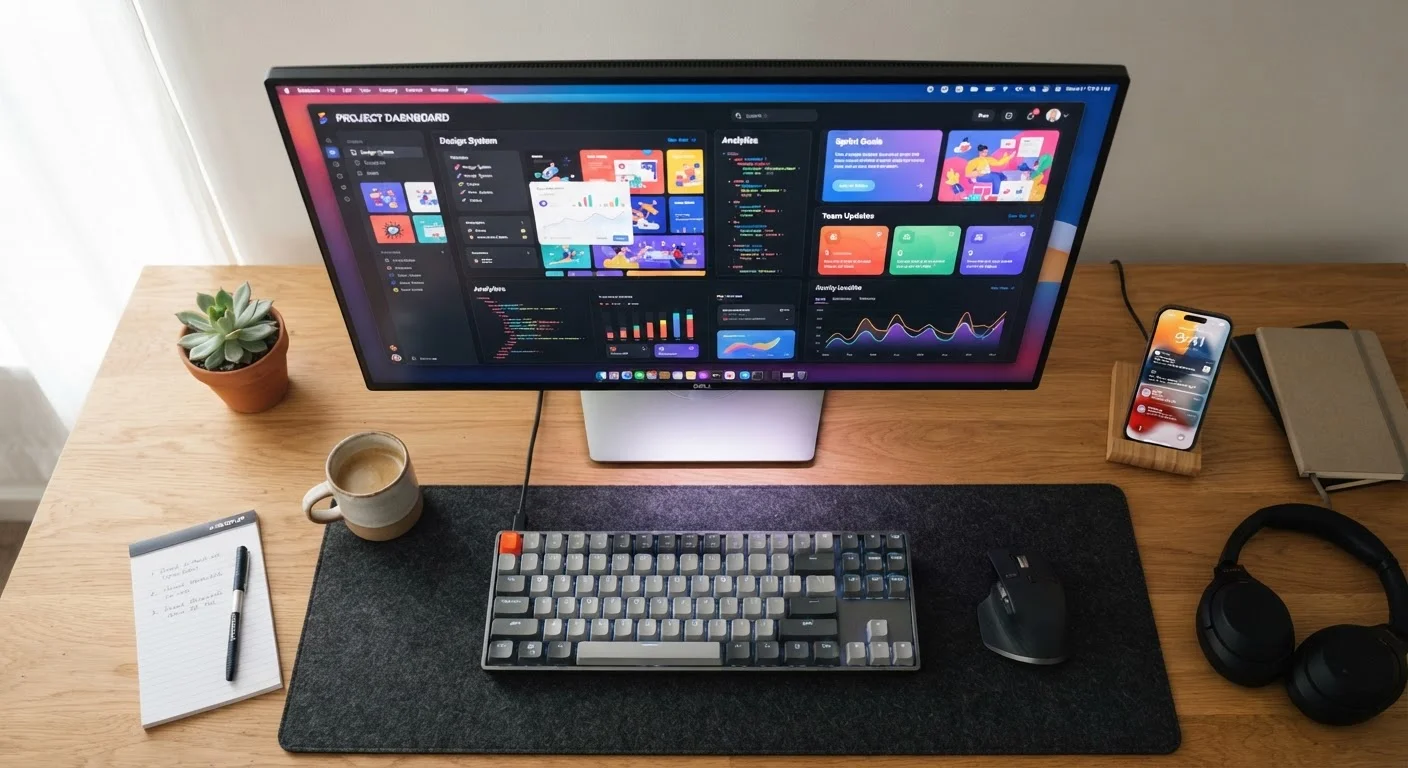
Resolution tells you how many individual pixels make up your display, expressed as width × height. A 1080p monitor (1920×1080) packs about 2 million pixels; a 4K monitor (3840×2160) quadruples that count. More pixels means finer detail — text looks crisper, photos show more texture, and UI elements can be smaller without appearing jagged.
That said, the sharpness you actually perceive depends on how close you sit. A 27-inch 4K monitor at arm's length looks noticeably sharper than the same screen at 1080p. On a 24-inch display viewed from a typical desk distance, the difference between 1080p and 1440p is meaningful; the jump from 1440p to 4K becomes more subtle for everyday tasks like browsing and document work.
Higher resolution also demands more graphics processing power. If your computer has integrated or entry-level graphics, running a 4K monitor at full resolution may slow things down. See our companion piece on integrated vs. dedicated graphics to understand how GPU capability ties into display output.
| 1080p resolution | 1920 × 1080 pixels (~2.07 million total) |
| 1440p resolution | 2560 × 1440 pixels (~3.69 million total) |
| 4K resolution | 3840 × 2160 pixels (~8.29 million total) |
| Standard refresh rate | 60Hz — adequate for everyday computing and streaming |
| High refresh rate | 120Hz–144Hz and above — noticeably smoother for gaming and fast motion |
| Typical IPS contrast ratio | ~1,000:1 |
| Typical VA contrast ratio | ~3,000:1 or higher |
Refresh Rate: How Smoothly Motion Is Rendered
Refresh rate — measured in hertz (Hz) — is how many times per second your monitor redraws the image. A 60Hz panel updates 60 times per second; a 144Hz panel updates 144 times. The result is that motion looks noticeably smoother at higher rates, which matters most in fast-paced video, animation, and gaming.
For standard office work, video calls, and streaming, 60Hz is entirely adequate. You'll notice the difference with 120Hz or 144Hz primarily when moving a cursor quickly across the screen, scrolling long pages, or watching action-heavy video. Competitive gaming is where high refresh rates deliver their biggest practical advantage — less motion blur and faster visual feedback.
One important caveat: your computer's graphics output must match or exceed the monitor's refresh rate for you to see the full benefit. A 144Hz monitor connected to hardware that only outputs 60 frames per second still displays at 60Hz effective smoothness. This is covered in more depth in our guide on what PC specs actually mean.
4×
More pixels in 4K vs. 1080p
A 4K display at 3840×2160 contains roughly four times the pixel count of a 1080p display at 1920×1080.
144Hz
Common high refresh rate for gaming monitors
144Hz panels redraw the screen 2.4 times more often per second than a standard 60Hz display, producing visibly smoother motion.
Panel Type: IPS, VA, and TN Compared
The panel technology behind the glass determines color accuracy, viewing angles, contrast, and response time. Three types dominate the market:
- IPS (In-Plane Switching): Wide viewing angles and accurate, consistent color. Colors don't shift much when you look from the side. IPS panels are a common choice for photo editing, design work, and anyone who shares their screen with others nearby. Response times are generally fast, though not always the fastest available.
- VA (Vertical Alignment): VA panels typically deliver deeper blacks and higher native contrast ratios than IPS — often 3,000:1 or more compared to IPS averages around 1,000:1. This makes dark scenes in movies and games look richer. The trade-off is narrower viewing angles and, on some VA panels, slightly slower pixel response that can create faint smearing on fast motion.
- TN (Twisted Nematic): The oldest of the three technologies. TN panels can achieve very fast pixel response times, historically making them popular for competitive gaming. However, color accuracy and viewing angles are noticeably weaker than IPS or VA. TN monitors have become less common as IPS panels have improved in speed.
For most everyday users — general computing, media consumption, casual gaming — an IPS or VA panel covers the full range of needs well. The choice between them usually comes down to whether you prioritize color accuracy and wide viewing angles (IPS) or deeper contrast and darker blacks (VA).
Resolution
The total number of pixels on a screen, expressed as width × height (e.g., 1920×1080). Higher resolution means more detail can be displayed, though perceived sharpness also depends on screen size and viewing distance.
Refresh Rate
How many times per second a monitor redraws the image on screen, measured in hertz (Hz). Higher refresh rates produce smoother motion, most noticeably in gaming and fast-scrolling content.
Pixel Density (PPI)
Pixels per inch — a measure of how tightly packed the pixels are on a given screen size. Higher PPI at the same viewing distance produces a sharper image.
Contrast Ratio
The difference in brightness between the darkest black and brightest white a monitor can display. A higher contrast ratio means darker blacks and a more vivid overall image.
Response Time
How quickly an individual pixel can transition from one color to another, measured in milliseconds (ms). Lower response times reduce motion blur and ghosting on fast-moving content.
Panel Type
The underlying LCD technology used in a monitor (IPS, VA, or TN). Each type makes different trade-offs between color accuracy, contrast, viewing angle, and response speed.
If you're researching display specs for a laptop rather than a desktop monitor, our article on laptop specs that actually matter applies this same framework to built-in screens.