
Why Smart Lights Lose Their Connection
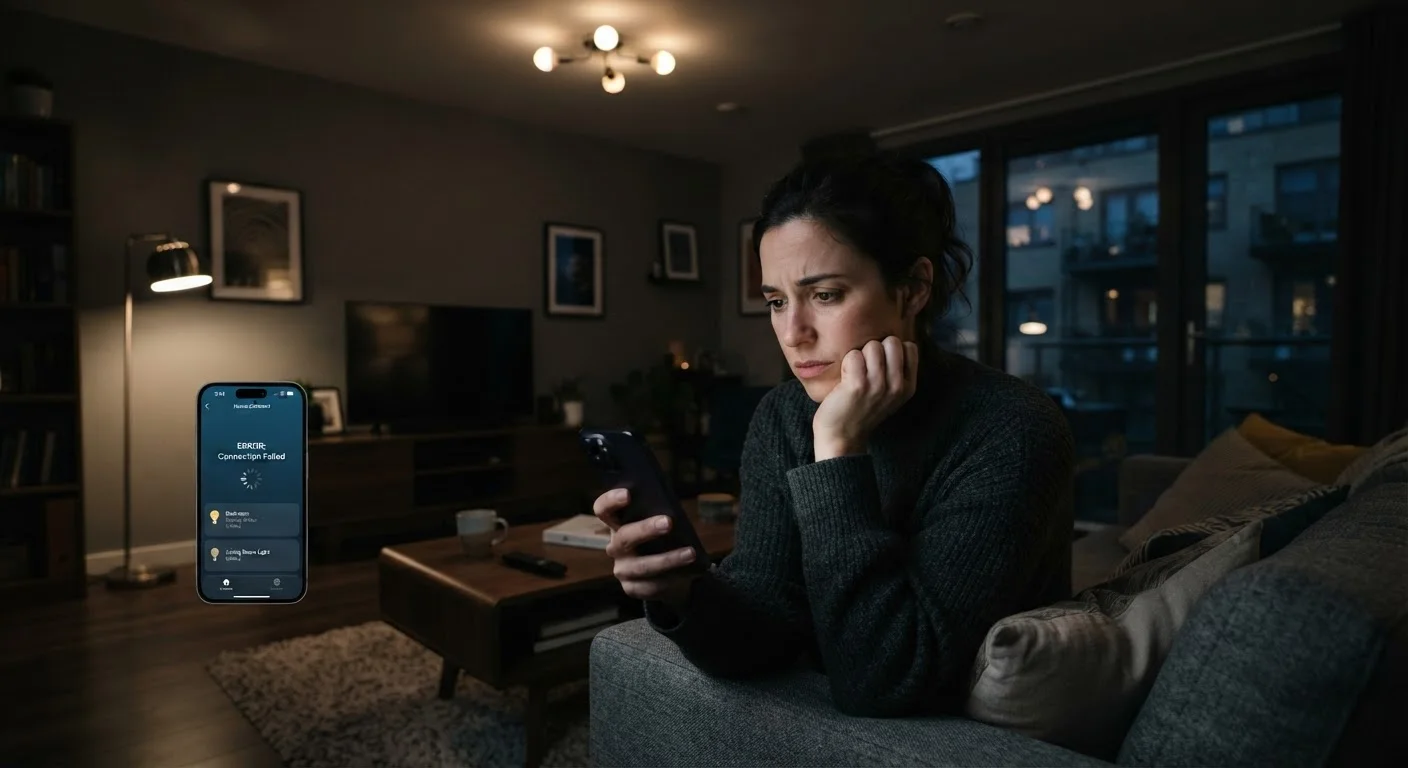
Smart bulbs feel magical until they stop responding mid-scene or vanish from your app entirely. The frustrating reality is that these drop-offs are rarely random — they almost always point to a specific, diagnosable problem in your home network or device configuration.
Unlike a traditional switch, a smart bulb is essentially a tiny computer running on your Wi-Fi. That means anything disrupting your wireless environment — distance, interference, outdated firmware, or an overloaded router — can knock it offline. The good news is that the most common culprits are well-understood and fixable without professional help.
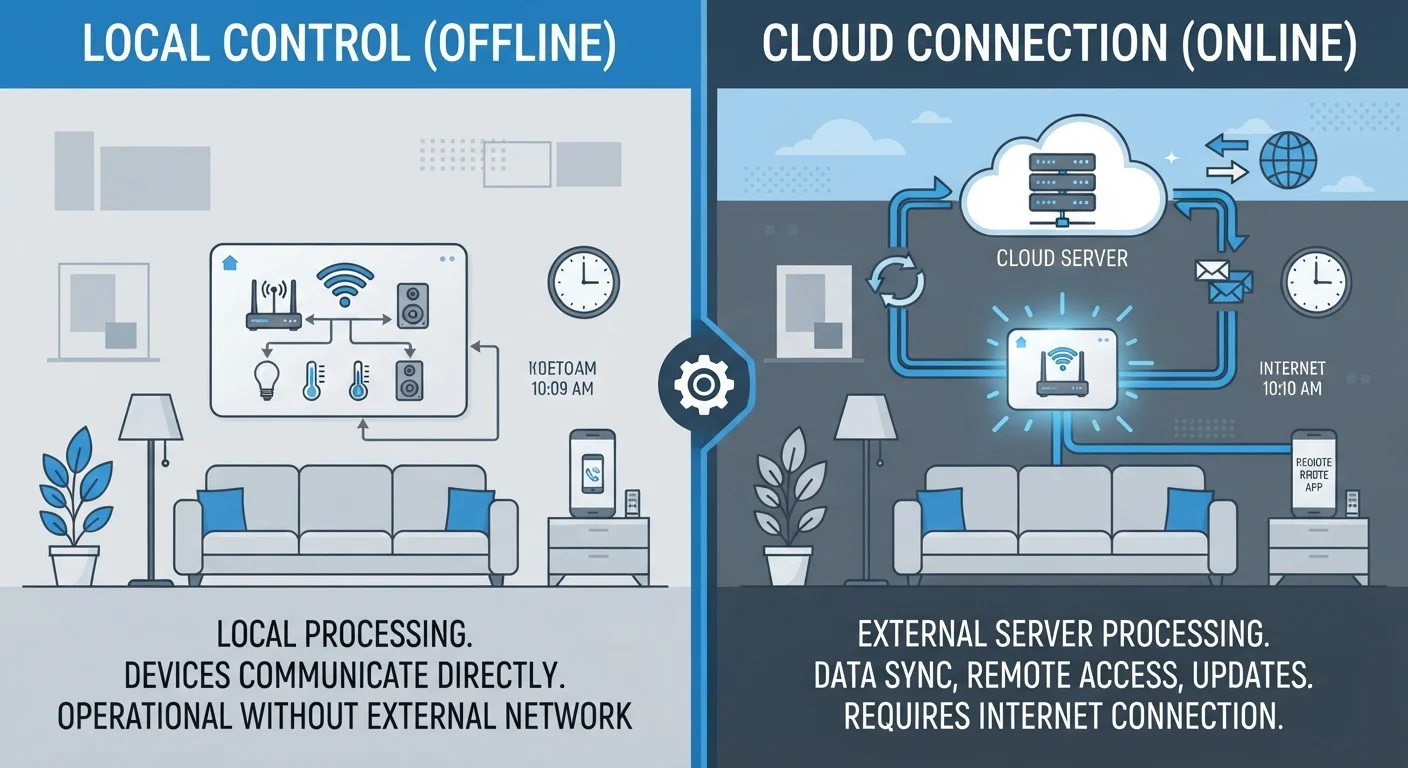
This article walks through the mistakes that cause smart lights to keep disconnecting, explains why each one happens, and gives you concrete steps to resolve it. For a broader look at how reliability varies across smart home setups, see our guide on local vs. cloud-dependent devices.
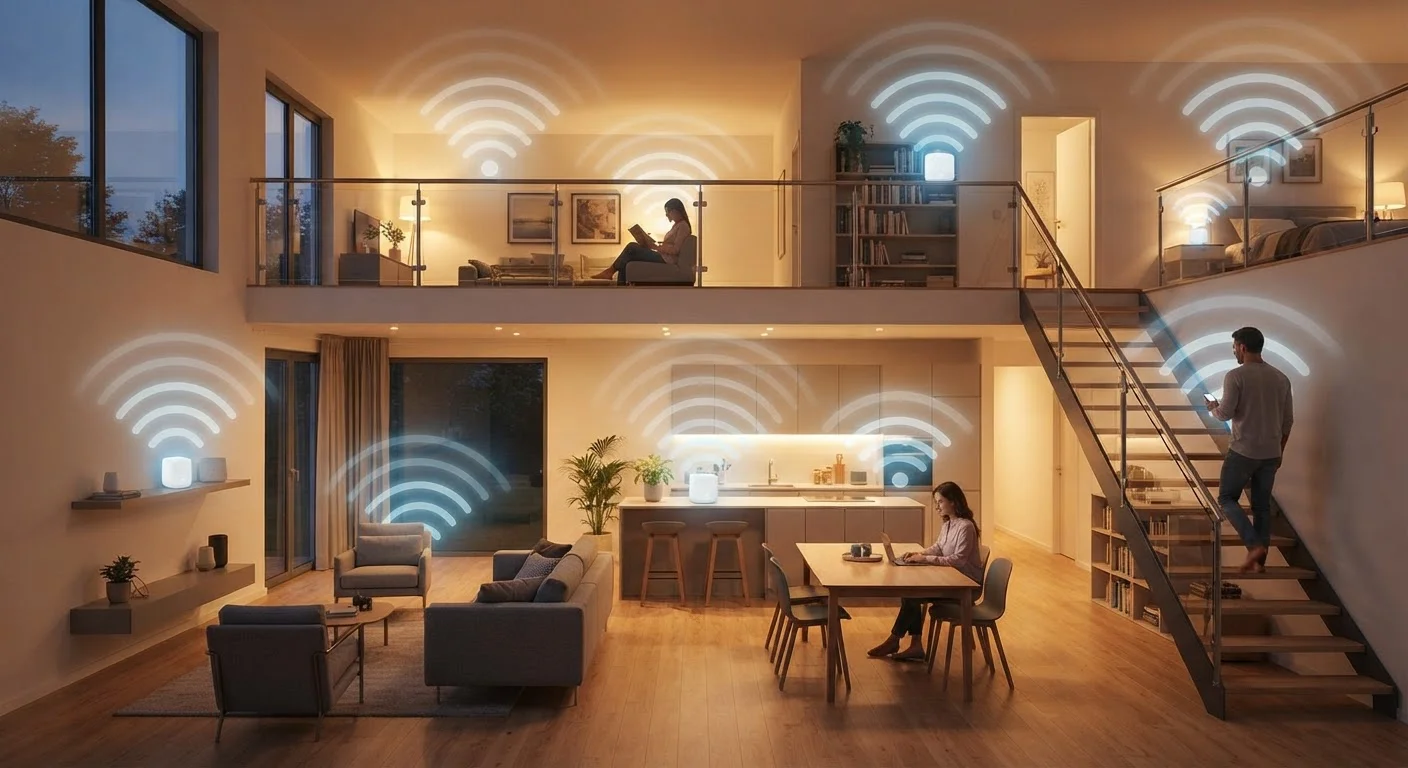
Placing the router too far from your smart bulbs.
Why it happens: Routers are often tucked in offices or closets for aesthetic reasons, far from the living spaces where smart lighting is most common. Smart bulbs have modest antennas and struggle with signal over distance.
Connecting smart bulbs to the 5 GHz Wi-Fi band instead of 2.4 GHz.
Why it happens: Modern routers broadcast two bands, and many automatically assign devices to 5 GHz for speed. Most smart bulbs only support 2.4 GHz — a faster band they simply cannot use.
Exceeding your router's maximum connected device count.
Why it happens: Consumer routers typically handle 20 to 50 devices reliably. Households with many smart bulbs, speakers, cameras, and phones can quietly surpass this, causing intermittent drops as the router struggles to manage connections.
Skipping firmware updates for bulbs and the router.
Why it happens: Firmware updates feel optional and are easy to ignore, but manufacturers regularly release patches that fix connectivity bugs, improve protocol compatibility, and address security vulnerabilities.
Ignoring Wi-Fi interference from neighboring networks or appliances.
Why it happens: The 2.4 GHz band is shared by microwaves, baby monitors, cordless phones, and dozens of neighboring Wi-Fi networks, all competing for the same airspace and causing signal degradation.
Relying on an unstable cloud connection without a local fallback.
Why it happens: Many smart bulbs depend on the manufacturer's cloud servers for automation and remote control. When those servers experience downtime or your internet connection drops briefly, bulbs appear offline even though your local network is fine.
Network and Configuration Fixes Worth Trying
Once you've identified which mistake applies to your setup, the fix is usually straightforward. Start with the simplest interventions first: move your router closer, check the frequency band your bulbs are assigned to, and confirm your network isn't pushing its device limit.
2.4 GHz
Wi-Fi band required by most smart bulbs
The vast majority of smart lighting products on the market only support the 2.4 GHz band, not the faster 5 GHz band common on modern routers.
-70 dBm
Minimum acceptable Wi-Fi signal for smart devices
Networking guidelines generally recommend a signal of -70 dBm or stronger for reliable IoT device connectivity; weaker signals increase drop-off frequency.
If your home has multiple floors or thick walls, a mesh network may be the most durable long-term solution. Our explainer on mesh networks and smart devices covers how these systems eliminate dead zones that cause chronic drop-offs.
For homes running many different device brands, a dedicated smart home hub can also help stabilize connections by acting as a local coordinator rather than relying entirely on cloud servers. Learn what a smart home hub actually does to decide whether one makes sense for your situation.
Don't Reset Your Bulbs as a First Step
Factory-resetting a smart bulb is often the instinctive response to connectivity problems, but it wipes all configuration and automations without addressing the underlying network issue. The bulb will likely disconnect again for the same reason once re-paired. Always diagnose and fix the network environment first, and reserve a reset for situations where the device itself appears genuinely corrupted.
Patience matters here. After making a change — repositioning a router, updating firmware, or switching frequency bands — give your bulbs 10 to 15 minutes to reconnect and stabilize before judging whether the fix worked. Layering multiple changes at once makes it harder to identify what actually solved the problem.