
The Connector Is the Same. The Capability Is Not.
Flip through the spec sheets of a budget Android phone, a mid-range laptop, and a professional workstation — they may all list "USB-C port," yet those ports can behave in dramatically different ways. The oval connector is a standardized shape, nothing more. What actually flows through it — and how fast — depends on the electronics inside that specific device.
This is the source of most USB-C frustration. A cable that works perfectly for charging a phone may not transfer files to a camera quickly, and a hub that drives dual monitors may only work on certain ports. Understanding why helps you avoid buying the wrong accessory. For a broader look at how ports compare across devices, see the plain-English port reference guide.
80x
Speed gap between USB 2.0 and USB4
USB 2.0 tops out at 480 Mbps while USB4 reaches 40 Gbps — both delivered through the same USB-C connector shape.
240W
Maximum wattage under USB PD 3.1
The USB Power Delivery 3.1 specification raised the ceiling to 240W, enabling USB-C charging for high-performance laptops and workstations.
3 types
Distinct video protocols over USB-C
DisplayPort Alt Mode, HDMI Alt Mode, and Thunderbolt each enable video through USB-C — but require port and cable support to function.
Data Transfer: Speed Tiers Matter
USB-C ports can operate across a wide range of data transfer standards. Here's what those labels mean in practice:
- USB 2.0: 480 megabits per second (Mbps). Common on budget devices and charging-only ports. Slow for large file transfers.
- USB 3.2 Gen 1: 5 gigabits per second (Gbps). Solid for external drives and accessories.
- USB 3.2 Gen 2: 10 Gbps. Faster for large media files.
- USB4 / Thunderbolt 4: Up to 40 Gbps. Found on higher-end laptops; enables fast external storage and daisy-chaining devices.
The cable must also support the same standard — a USB 3.2 port paired with a USB 2.0-rated cable bottlenecks at USB 2.0 speeds. Always match cable rating to port capability.
Check the Cable, Not Just the Port
When speeds or charging feel sluggish, the cable is often the culprit. Look for cables that explicitly state their USB version and wattage rating on the packaging or product listing. Unmarked or generic cables frequently underperform their rated port. Investing in clearly labeled cables saves troubleshooting time later.
Power Delivery: Charging Isn't One-Size-Fits-All
USB Power Delivery (USB PD) is the protocol that allows USB-C to charge devices at variable wattages — anywhere from 5W for small accessories up to 240W for high-performance laptops under the newer USB PD 3.1 specification. Not every USB-C port on a device supports the same wattage, even on the same machine.
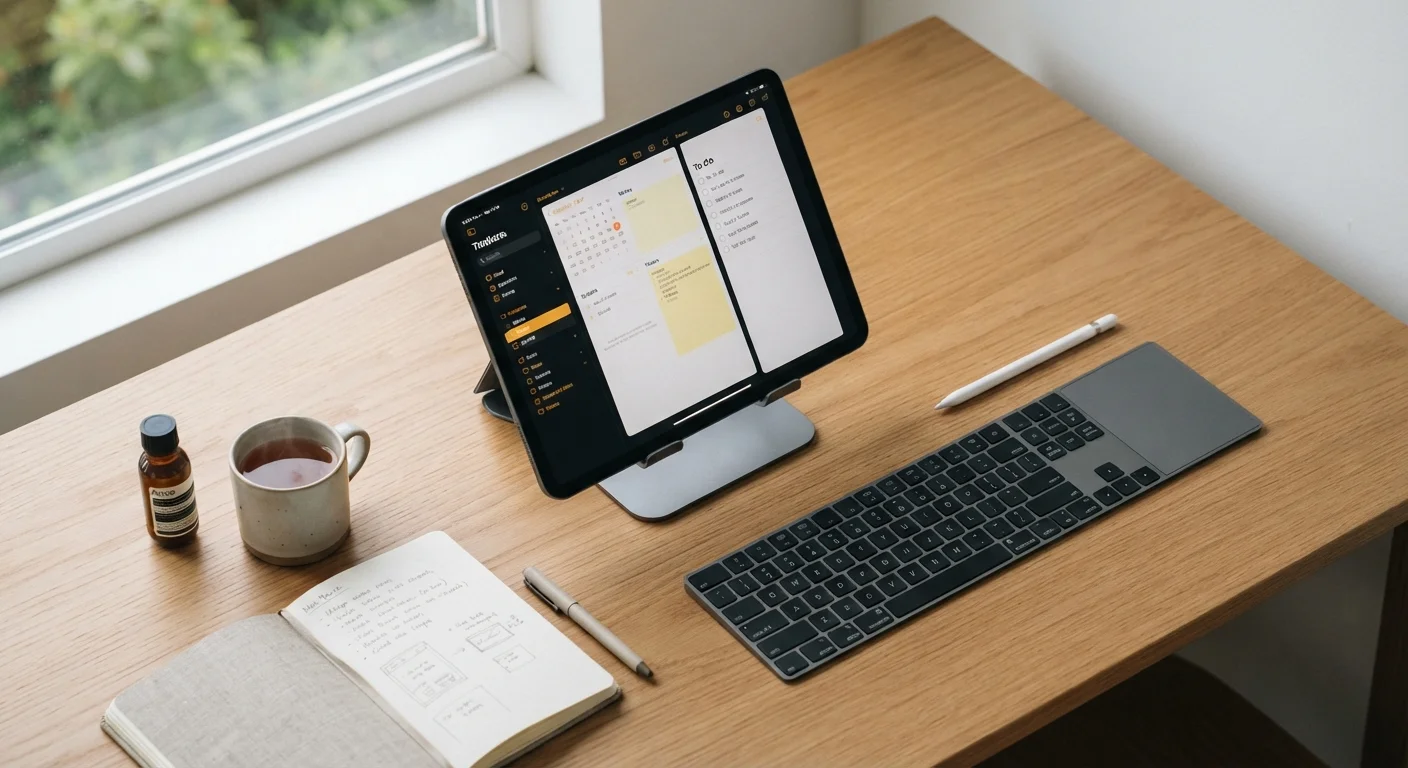
A common scenario: a laptop with two USB-C ports where only one supports charging. Plugging into the wrong port results in no charge at all. Similarly, using an underpowered charger — say, a 20W phone adapter on a laptop that needs 65W — may result in the battery draining even while plugged in. Identifying the correct charging port and matching it to an appropriately rated adapter prevents these issues. If you rely on a tablet for work, port capability is one of the things worth confirming early — see what to check on your tablet before depending on it for work.
Video Output: A Feature, Not a Given
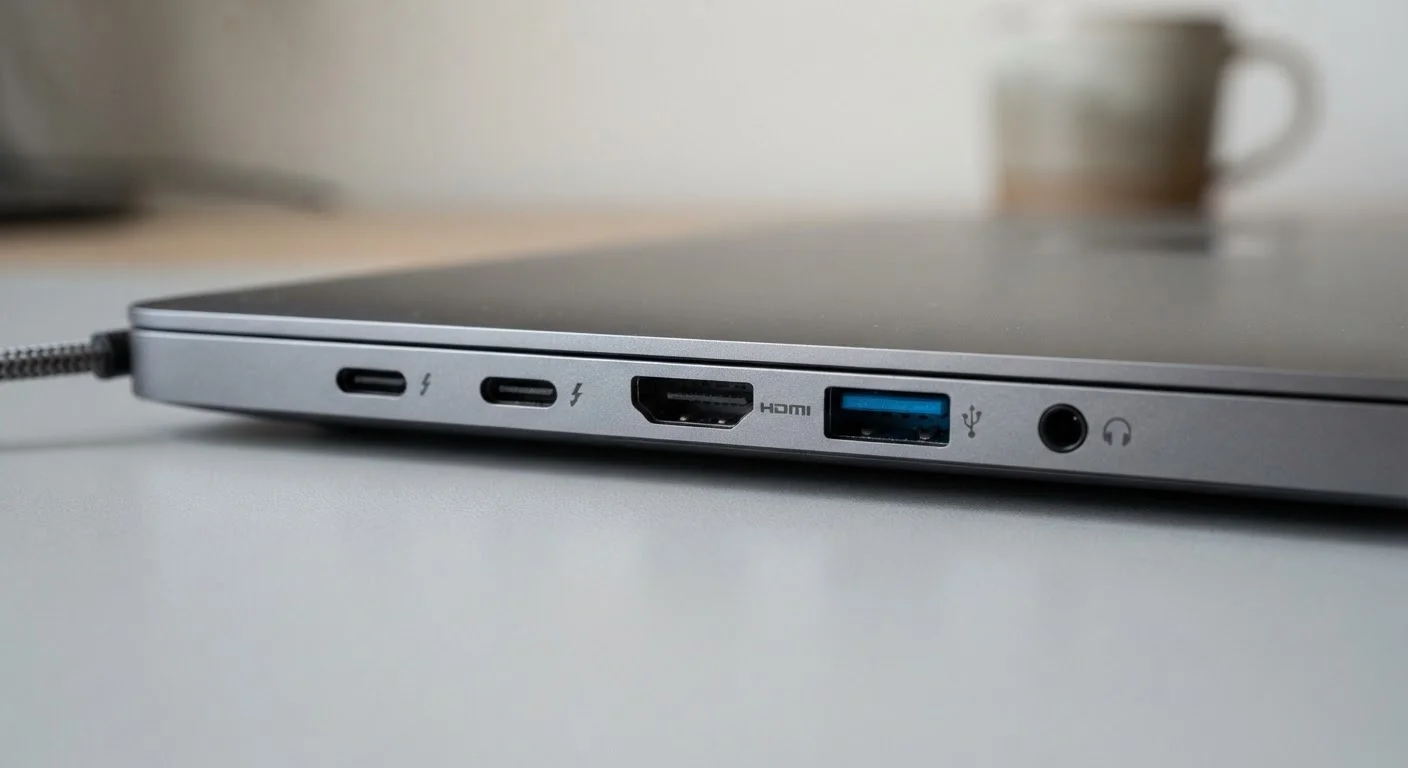
Connecting an external monitor via USB-C requires the port to support DisplayPort Alt Mode or Thunderbolt. These allow video signal to travel alongside data through the same cable. Many USB-C ports — particularly on budget laptops, phones, and secondary ports on larger machines — do not support video output at all.
If a device supports USB-C video output, it typically indicates this in the spec sheet with language like "supports DisplayPort 1.4" or "Thunderbolt 4 with display output." A port that lacks this capability simply won't transmit a picture, no matter what adapter you connect. This distinction is essential when building a work-from-home setup around a docking station or multi-monitor arrangement.
Hubs, Docks, and What Your Port Can Actually Handle
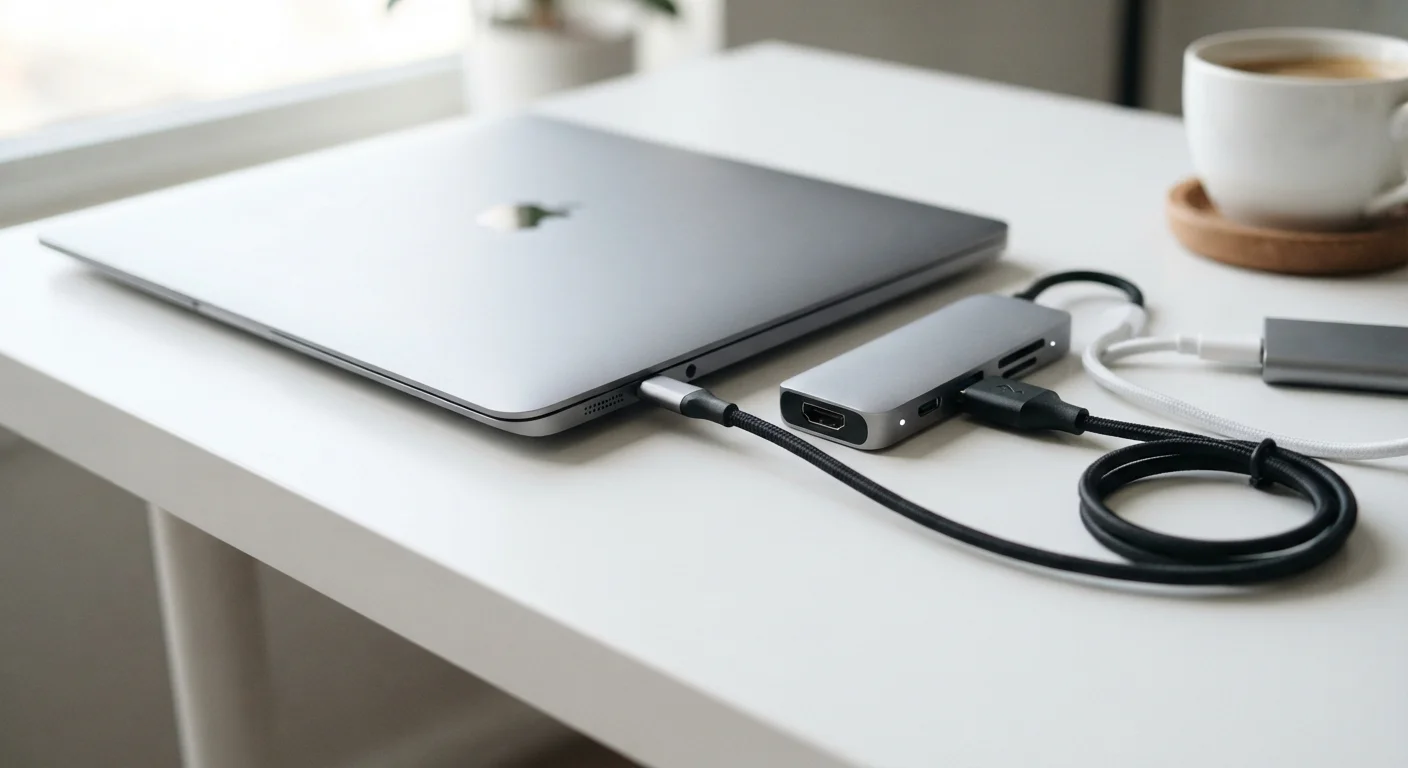
A USB-C hub or dock expands one port into many — adding HDMI outputs, USB-A ports, SD card slots, and more. But the hub is only as capable as the port powering it. Plug a Thunderbolt 4 dock into a USB 2.0-speed port and you lose most of the dock's functionality. The physical connection works; the bandwidth simply isn't there.
When evaluating a hub or dock, match its requirements to your port's specifications: data protocol, maximum wattage pass-through, and whether video output is supported. This also matters when choosing between a desktop and a laptop — port selection is one of the meaningful trade-offs covered in the desktop vs. laptop comparison.
“The USB-C connector's greatest strength — universal physical compatibility — is also its greatest source of confusion. Users see one port shape and assume one set of capabilities, but the real differences are invisible without reading the spec sheet.”
— USB Implementers Forum, Industry standards body overseeing USB specifications
One practical check: look for a small icon beside the port. A lightning bolt indicates Thunderbolt; a "D" symbol or "DP" label signals DisplayPort support. No icon typically means data and charging only.
This article is for informational purposes only. Specifications vary by manufacturer and product generation — always verify your device's spec sheet before purchasing accessories.