
How Each Drive Actually Stores Your Data
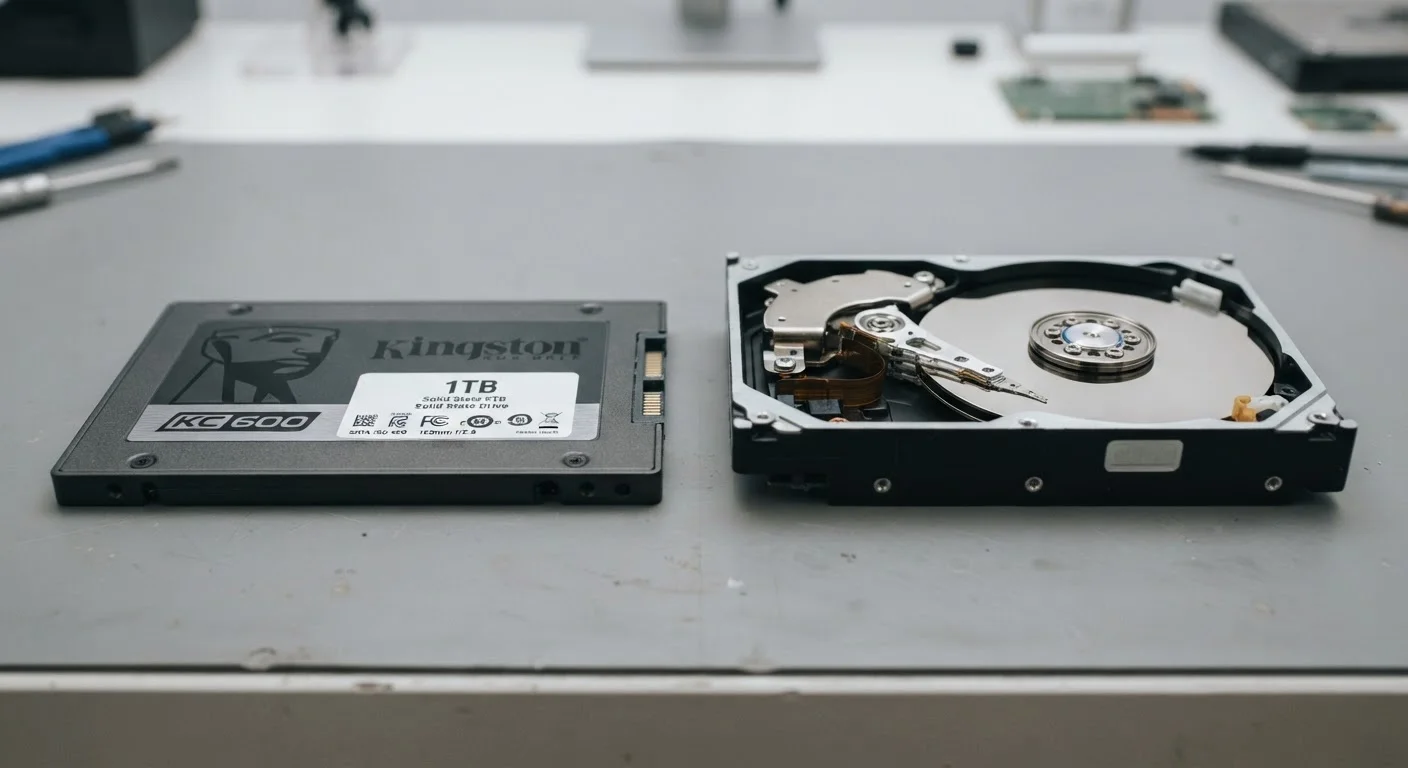
Understanding the core difference between these two storage types is easier than most spec sheets make it seem. An HDD (hard disk drive) stores data on one or more spinning magnetic platters. A tiny mechanical arm reads and writes information as the platters rotate — typically at 5,400 or 7,200 revolutions per minute. It's essentially the same fundamental technology that has been in computers since the 1950s, refined considerably but still mechanical at its core.
An SSD (solid-state drive), by contrast, stores data in flash memory chips — the same type of technology used in USB thumb drives, only faster and more sophisticated. There are no moving parts whatsoever. When your computer needs a file, the SSD retrieves it electronically rather than physically seeking a location on a spinning disk.
That single difference — moving parts versus no moving parts — is what drives nearly every practical trade-off between the two. For a deeper look at how storage fits into the broader picture of computer performance, see our plain-language guide to PC specs.
| Criterion | SSD | HDD |
|---|---|---|
| Technology | Flash memory chips | Spinning magnetic platters |
| Typical boot time | Under 15 seconds | 30–60+ seconds |
| Moving parts | None | Yes (platters and arm) |
| Shock resistance | High | Low to moderate |
| Noise | Silent | Audible hum and clicks |
| Cost per gigabyte | Higher | Lower |
| Common capacity range | 256 GB – 4 TB (consumer) | 500 GB – 20+ TB |
| Best primary use | Everyday computing, laptops | Bulk storage, backups |
Speed, Durability, and the Everyday Experience
For most users, speed is where the difference becomes immediately obvious. A computer with an SSD typically boots in under 15 seconds; the same hardware with an HDD may take 30–60 seconds or more. File transfers, application launches, and browser performance all benefit from faster storage. The reason is access time — the delay between requesting data and receiving it. SSDs have access times measured in fractions of a millisecond; HDDs can lag by several milliseconds, which compounds noticeably across hundreds of daily operations.
3–5×
Faster sequential read speeds (SSD vs. HDD)
Consumer SSDs commonly achieve read speeds of 500–7,000 MB/s depending on interface; typical HDDs reach 100–200 MB/s.
~0.1 ms
Typical SSD data access time
HDDs average 5–10 ms access time; SSDs operate in fractions of a millisecond, reducing lag across every file operation.
90%+
New laptops shipping with SSDs
Industry analysts note that SSDs have become the dominant storage medium in new consumer laptops across most major manufacturers.
Durability is another meaningful gap. Because HDDs have spinning platters and moving read/write heads, a sharp drop or knock while the drive is active can cause what's called a head crash — physical contact between the arm and platter that can destroy data. SSDs have no such vulnerability. For anyone using a laptop away from a desk, that resilience has real practical value.
Noise is also a factor some users underestimate. HDDs produce an audible hum and occasional clicking sounds during heavy use. SSDs are completely silent. It's a minor point for desktop users but noticeable in quiet environments.
It's worth noting that SSDs do have a finite number of write cycles before individual memory cells wear out — but for typical consumer use, this lifespan extends well beyond the useful life of most computers.
Capacity, Cost, and When HDDs Still Make Sense
The HDD's strongest argument remains price-per-gigabyte. A multi-terabyte HDD typically costs considerably less than an equivalent SSD of the same capacity. For users who store extensive video footage, large photo archives, or thousands of songs, that cost gap matters.
This is why many desktop builds and content-creator setups use a hybrid approach: a smaller SSD as the primary drive (where the operating system and frequently used apps live) combined with a larger HDD for bulk file storage. The SSD delivers fast everyday performance; the HDD provides affordable depth. For context on making these decisions when evaluating a laptop purchase, see our guide to specs that matter.
External HDDs remain a reliable, cost-effective solution for offline backups — a task where raw read/write speed matters less than capacity and price. For tips on keeping your computer healthy over time, including storage management habits, our article on keeping your computer running smoothly covers practical routines worth building.
NVMe vs. SATA SSDs: A Quick Clarification
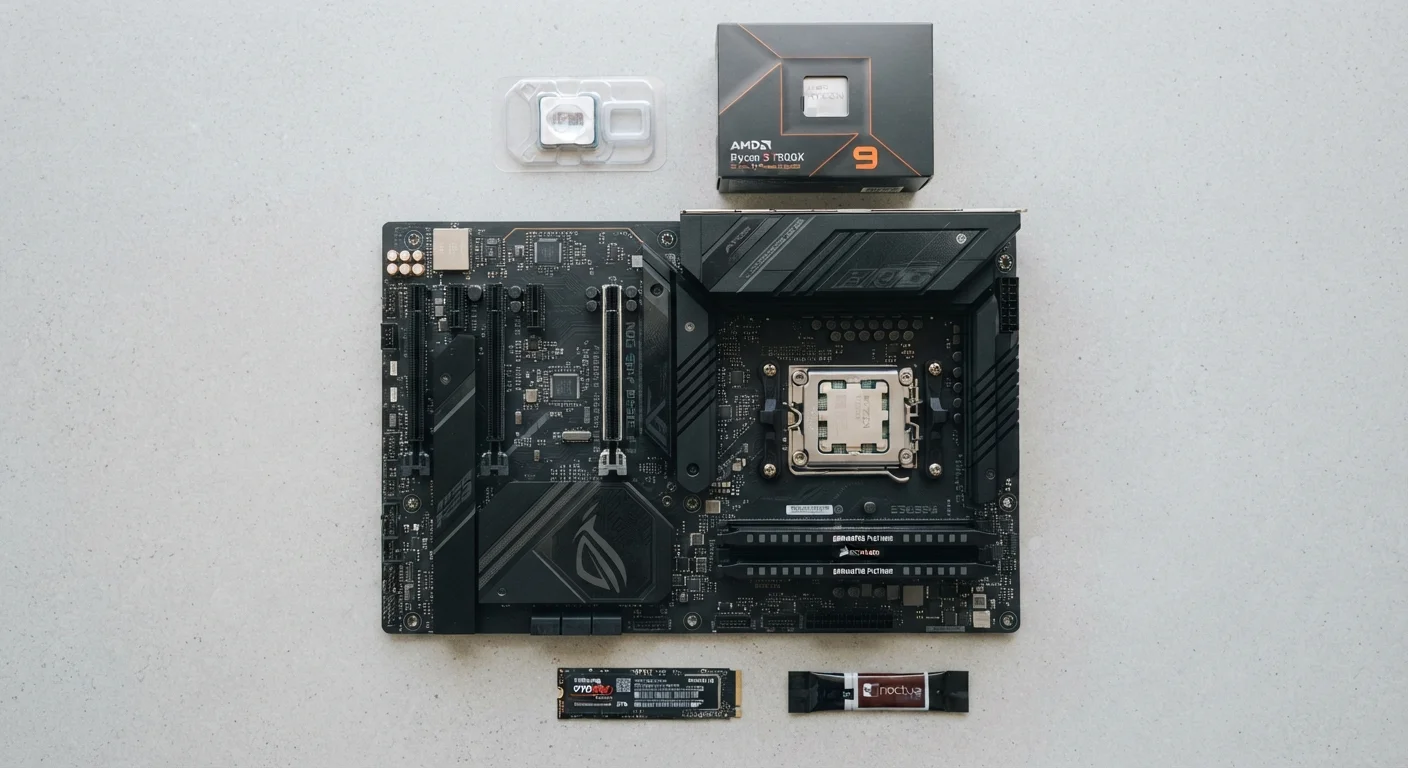
Not all SSDs are equal. Older SSDs use a SATA connection (the same interface as HDDs) and are fast but not the fastest available. Newer NVMe SSDs connect via the PCIe slot and can be several times quicker than SATA SSDs. Most modern laptops and desktops ship with NVMe drives. When evaluating storage specs, it's worth checking which interface a drive uses — not just whether it's labeled an SSD.
It's also worth dispelling a common misconception: storage and memory (RAM) are entirely different things. If you're uncertain about that distinction, common misconceptions about computer memory is a useful read before making any upgrade decisions.