
Why Memory Myths Persist
Computer memory is one of those topics where everyday language and technical reality diverge sharply. People hear 'memory' and think of storage — of photos, documents, and downloaded files. Manufacturers often describe both RAM and storage capacity in gigabytes, which compounds the confusion. The result is a steady stream of misconceptions that lead to poorly targeted upgrades, unnecessary frustration, and computers that still feel slow after expensive interventions.
This guide works through the most persistent myths, corrects them with accurate explanations, and helps you understand what's actually happening inside your machine. If you're also navigating smartphone specs, the same principles apply — see what smartphone specs actually mean.
Myth
RAM and storage are basically the same thing — they're both measured in gigabytes, so they must do the same job.
Fact
RAM is short-term working memory your computer uses while actively running programs; storage is long-term space where your files and software live permanently.
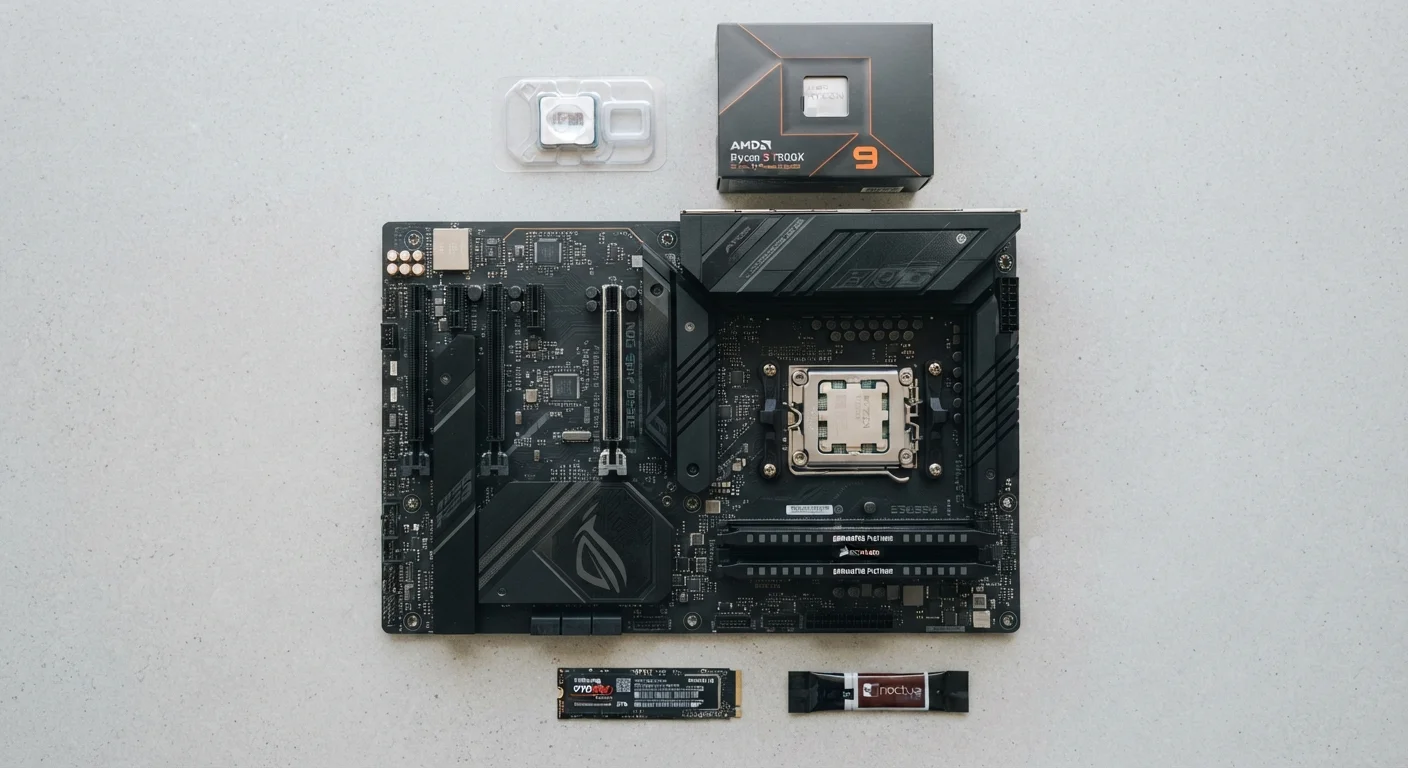
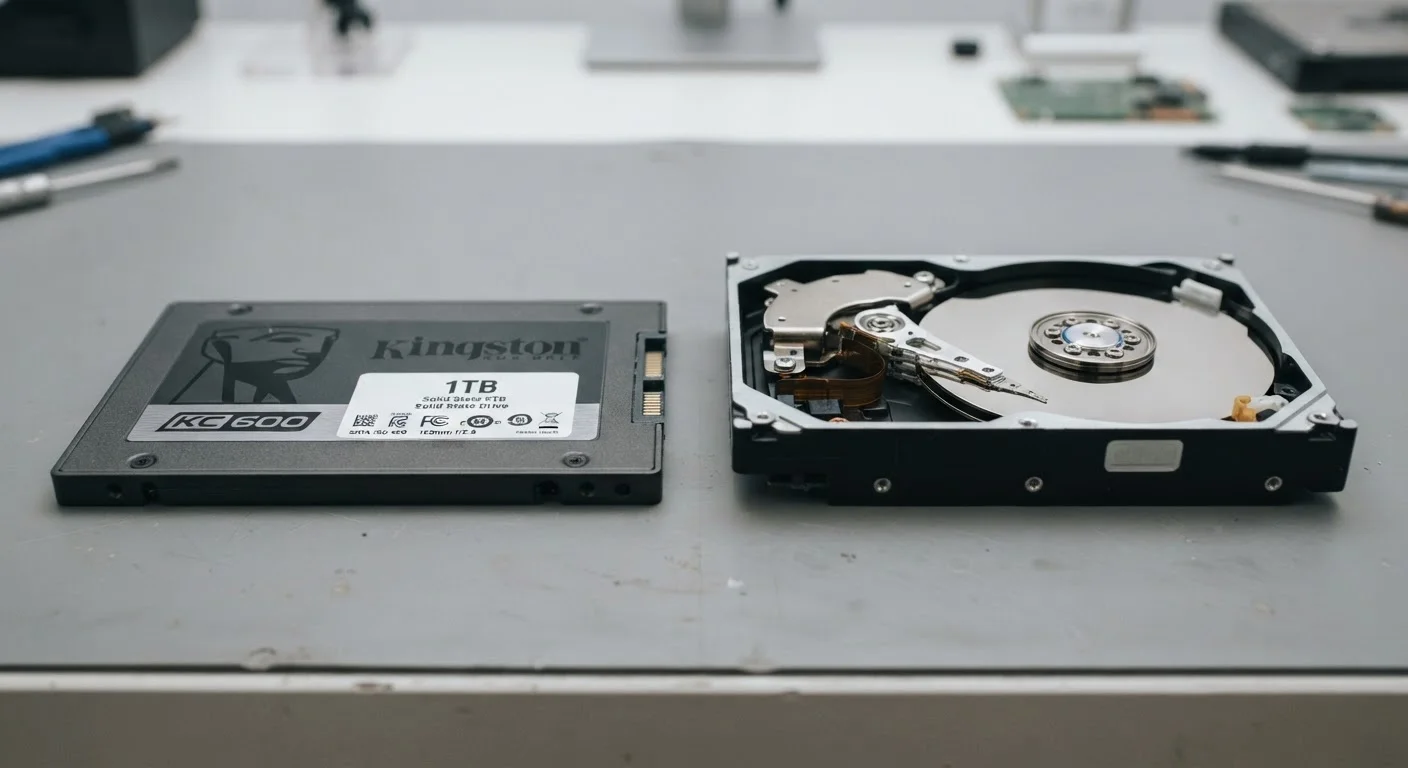
The gigabyte unit of measurement is where the confusion starts and ends. RAM (Random Access Memory) functions like a desk: it holds whatever your computer is actively working on. Storage — whether a hard drive (HDD) or solid-state drive (SSD) — is more like a filing cabinet: it holds everything even when the computer is off. When you open a document, it moves from storage into RAM so the processor can work with it quickly. They operate together, but they are not substitutes for each other. For a deeper look at how these specs interact, see what PC specs actually mean.
Myth
More RAM always makes a computer faster, no matter what.
Fact
RAM only improves performance when your current amount is genuinely insufficient for the tasks you're running — beyond a certain point, adding more has no effect.
If you're running basic tasks like web browsing and word processing, a system with adequate RAM for those tasks won't get any faster by doubling that RAM. The operating system and applications only use what they need. If your slowdowns come from a sluggish processor, an almost-full storage drive, or outdated software, extra RAM won't address any of those issues. Understanding your actual bottleneck is the essential first step before any upgrade.
Myth
You should always close apps to free up RAM and keep your computer running faster.
Fact
Modern operating systems are designed to manage RAM automatically and efficiently — frequently force-closing apps can actually create more work for your system.
Contemporary operating systems like Windows and macOS actively monitor RAM usage and reassign it as needed. Unused RAM is deliberately repurposed to cache recently accessed data, which speeds up future tasks. When you force-quit apps constantly, the system has to reload them from storage the next time you open them — a slower process. Unless your system is genuinely running out of RAM and swapping to disk, routine app-closing is largely unnecessary effort.
Myth
Virtual memory is just as good as real RAM, so you don't need to upgrade.
Fact
Virtual memory uses your storage drive as a slow overflow buffer — it prevents crashes but is significantly slower than physical RAM.
When a system runs out of RAM, the operating system borrows space from the storage drive in a process called paging or using a swap file. This prevents the computer from failing outright, but reading and writing to a drive — even a fast SSD — is considerably slower than accessing physical RAM. A computer that relies heavily on virtual memory will feel noticeably sluggish. It is a safety net, not a performance solution. For more on storage differences, see how SSDs and HDDs differ.
Myth
RAM specs don't matter as long as the capacity (GB) is high enough.
Fact
RAM speed and configuration (such as dual-channel versus single-channel) also affect real-world performance, not just total capacity.
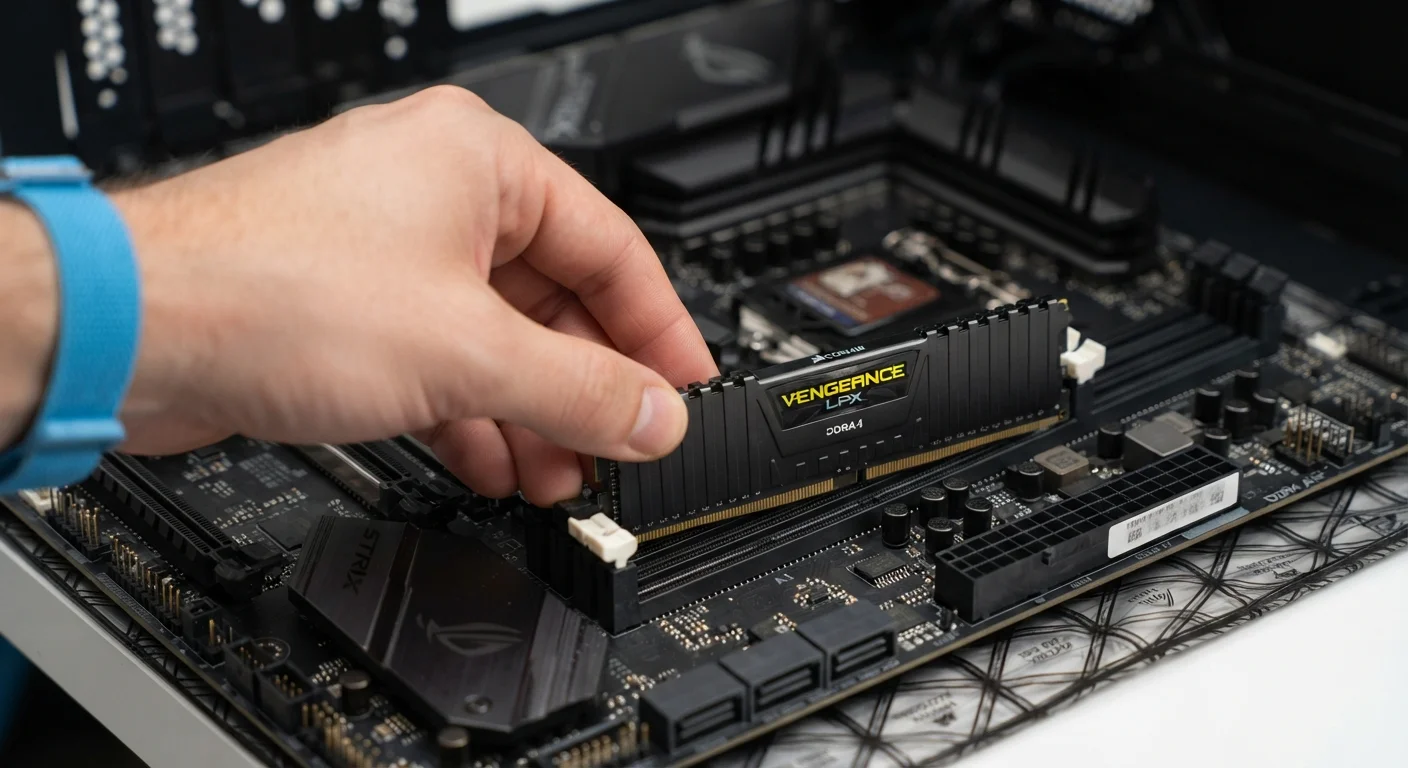
RAM modules have speed ratings measured in megatransfers per second (MT/s) or labeled as DDR4, DDR5, and similar standards. Faster RAM can improve performance in tasks that are memory-bandwidth sensitive, such as video editing or gaming. Additionally, running two matched RAM sticks in dual-channel mode can meaningfully improve throughput compared to a single stick of the same total capacity. Capacity matters, but it is not the only specification worth considering.
Making Sense of Memory for Smarter Decisions
RAM and Storage Are Not Interchangeable
Confusing RAM with storage is one of the most common and consequential mistakes consumers make when buying or upgrading a computer. RAM holds data your processor is actively using right now; storage holds everything permanently, including your files and operating system. Mixing up the two can lead to buying the wrong upgrade entirely — and still ending up with a slow machine.
Once you separate RAM from storage in your mental model, the rest of the misconceptions tend to unravel naturally. The key insight is that RAM is temporary and speed-focused, while storage is permanent and capacity-focused. Neither one compensates fully for a deficit in the other.
Upgrading RAM Won't Fix Every Slowdown
If your computer is slow because its storage drive is nearly full, its processor is underpowered, or it's running too many background processes, adding more RAM will not solve the problem. Before assuming a RAM upgrade is the answer, check other potential causes first. See why a slow computer isn't always a hardware problem for a fuller diagnostic approach.
When evaluating whether a memory upgrade makes sense, start by monitoring your system's RAM usage under normal load — both Windows and macOS include built-in tools for this. If usage is consistently near 100%, more RAM is a reasonable consideration. If usage is modest, look elsewhere for the cause of sluggishness. Good maintenance habits also extend the effective life of any configuration — see keeping your computer running smoothly over time for practical guidance.
This article provides general educational information about computer hardware. Specific upgrade decisions should be evaluated based on your individual machine's compatibility and your actual usage needs.